Check the MAC address now shown in the app
Open OSM PLAYER on the device where you reinstalled it. The start screen shows a MAC address, a 6-digit device key and a QR code. You can also find the address and key later in Settings. Copy the MAC address exactly as displayed, or take a clear photo so you can compare it with your previous record.
Use this in-app address for recovery. Do not substitute an address from your router’s device list, the TV’s Wi-Fi settings or a label on the device. Those are not the address support has asked you to provide. Our guide to the MAC address and device key explains where to find the app’s details.
A reinstall does not necessarily change the displayed address every time, and a changed address alone does not establish why it happened. There is no need to adjust Wi-Fi privacy settings or factory-reset the device to troubleshoot activation. Keep the current installation in place while you collect the information support needs.
Find the old address in your saved records
Look for a screenshot or photo of the app’s earlier start screen or Settings screen. You may also have copied the old MAC address into a note when you activated the device. If you previously contacted support, check that conversation for an address you supplied. Make sure the record belongs to this device, especially if you use the app on several screens.
Compare the full old and new addresses rather than only their final characters. Label them clearly as “old MAC” and “new MAC” in your notes. If they match, tell support that activation appears missing after reinstalling but the displayed address has not changed; that is different from requesting a transfer between two addresses.
If you cannot find the old address, contact support anyway and explain what is missing. Mention any previous support conversation and keep your activation payment confirmation available if you have one. Do not guess an address or send the MAC from another activated TV. Support will need to establish which activation you are asking about.
Contact support with both MAC addresses
For a changed MAC address following a reinstall, the recovery route is to contact support with the old and new addresses so we can move the activation over. Use WhatsApp, email or Telegram through the contact support page. Start with the address pair and a short explanation rather than sending several screenshots without saying which address is current.
You do not need to send your provider’s playlist password to explain an activation transfer. App activation and provider access are separate matters. Keep the request focused on the device and its activation, and provide any additional information support asks for through that conversation. There is no confirmed transfer completion time to promise here.
- 1
Identify the same device
Say that you reinstalled OSM PLAYER on the same TV, stick, box, phone or computer and that its displayed MAC address changed.
- 2
Include both MAC addresses
Write “Old MAC:” followed by the previous address, then “New MAC:” followed by the address currently shown inside the app.
- 3
Request the activation move
Ask support to move your existing activation to the new MAC address. Keep the current installation so the address you supplied remains the one you can check.
Explain what happened before the address changed
Tell support whether you only uninstalled and reinstalled the app or also reset the entire device. Include the device type and whether you changed the installation method. If you opened the app under a different device user profile, mention that too. These details provide context; they do not prove what caused the address to change.
A useful message is: “I reinstalled OSM PLAYER on the same device, and the MAC address shown in the app changed. Old MAC: [your previous address]. New MAC: [your current address]. Please move my existing activation to the new address.” Add a sentence about a factory reset or other change only if it happened.
Avoid another reinstall or factory reset while the request is being handled. Neither is the documented recovery route for this situation, and either can make it harder to keep track of the current app details. If you have already made another change since contacting support, send the address now displayed and explain that it replaces the earlier one.
Check activation and playlist access afterward
Once support confirms the activation has been moved, open the app and check whether playback is available. Then check whether your expected playlists are present. Moving an activation and restoring playlist access are separate checks: do not assume the transfer will automatically restore every playlist associated with the previous address.
OSM PLAYER is a media player only. It does not sell, host or include channels, films, series or playlists. Activation enables the app on one device; it does not buy content or replace your provider login. If the app is activated but a playlist is missing, you need the playlist details from your own provider, whose content you have the right to watch.
- 1
Check the current device
Confirm that the MAC address in the app matches the new address you gave support. Check activation and whether your saved playlists are visible.
- 2
Add any missing playlist
Scan the current QR code or open Manage playlist and sign in with the current MAC address and device key. Add your M3U or M3U8 link, or Xtream Codes server URL, username and password; optionally add an EPG link and PIN, then press Test connection and save.
- 3
Refresh and check playback
Press Refresh in the app and try a playlist item. If the playlist appears but will not load, follow the playlist link troubleshooting steps rather than assuming the activation transfer failed.
What changes when you move to another device?
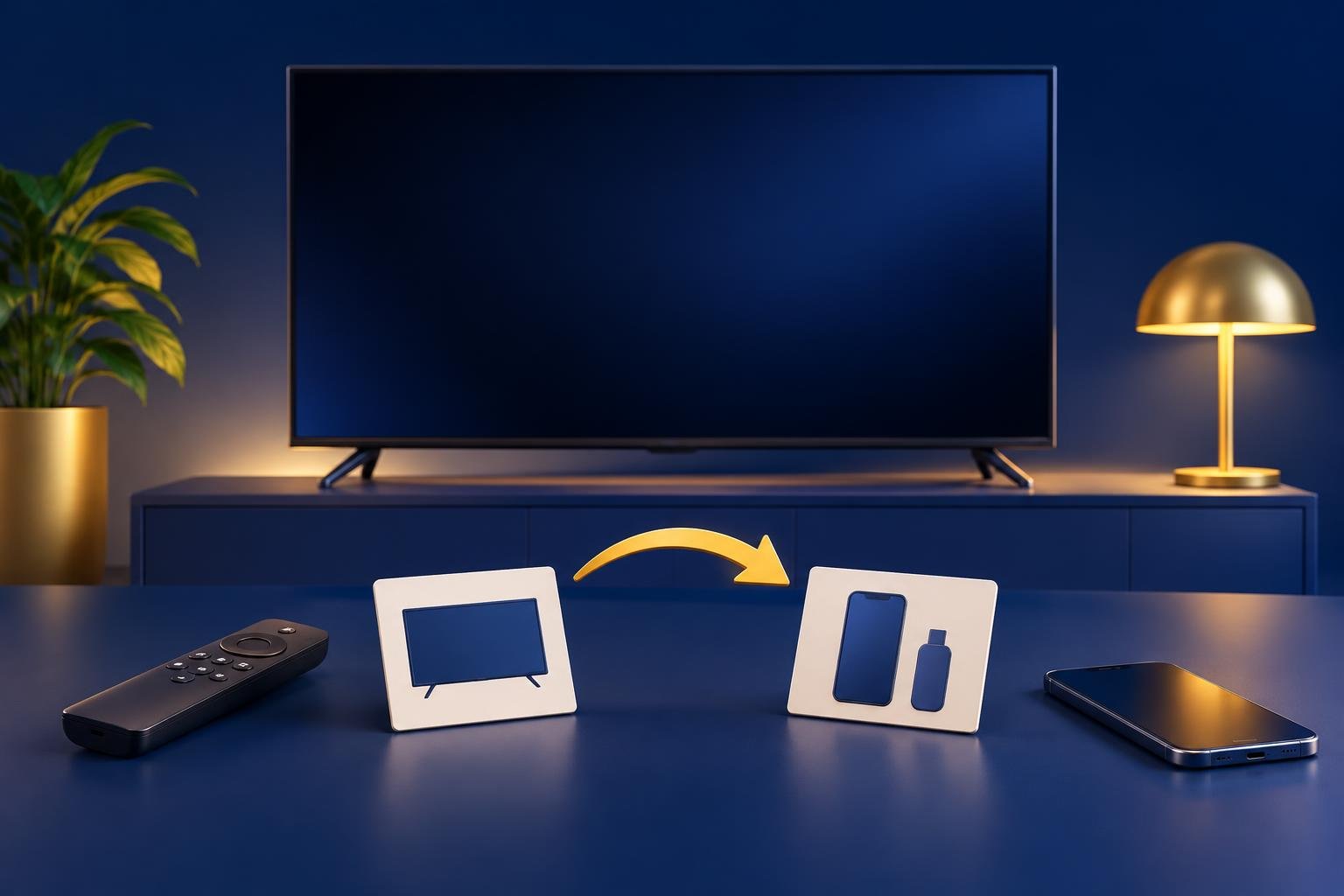
Reinstalling on the same device is different from replacing it. Each device has its own MAC address and its own activation. Moving from an old TV to a new TV therefore means activating the new TV, not using the reinstall recovery route to move the old activation. The same distinction applies when you replace a streaming stick or TV box.
Consider which device actually runs the app. If a streaming stick is plugged into your TV, the app runs on that stick, not on the display. Moving the same stick to another display is not replacing the device that runs OSM PLAYER. Replacing the stick itself is a move to a different device.
For a reinstall on the same device, send support the old and new MAC addresses before buying another activation. If you have genuinely moved to a new device, first check your playlist during its free 7-day trial, then activate your new device when you are ready. Payment activates that device only and includes no content.
Published 21 Nov 2026