
Get the Downloader app
Downloader is a free app for TVs, made by AFTVnews. It downloads a file from the internet and opens it, which is how you install an app that isn't in your TV's store. You only need it once.
- 1
On an Android TV box or Google TV
Open Google Play, search for “Downloader” and install Downloader by AFTVnews.
- 2
On a Fire TV Stick or Fire TV
Search for “Downloader” from the home screen and install it from the Amazon Appstore.
Type the code and install
- 1
Open Downloader
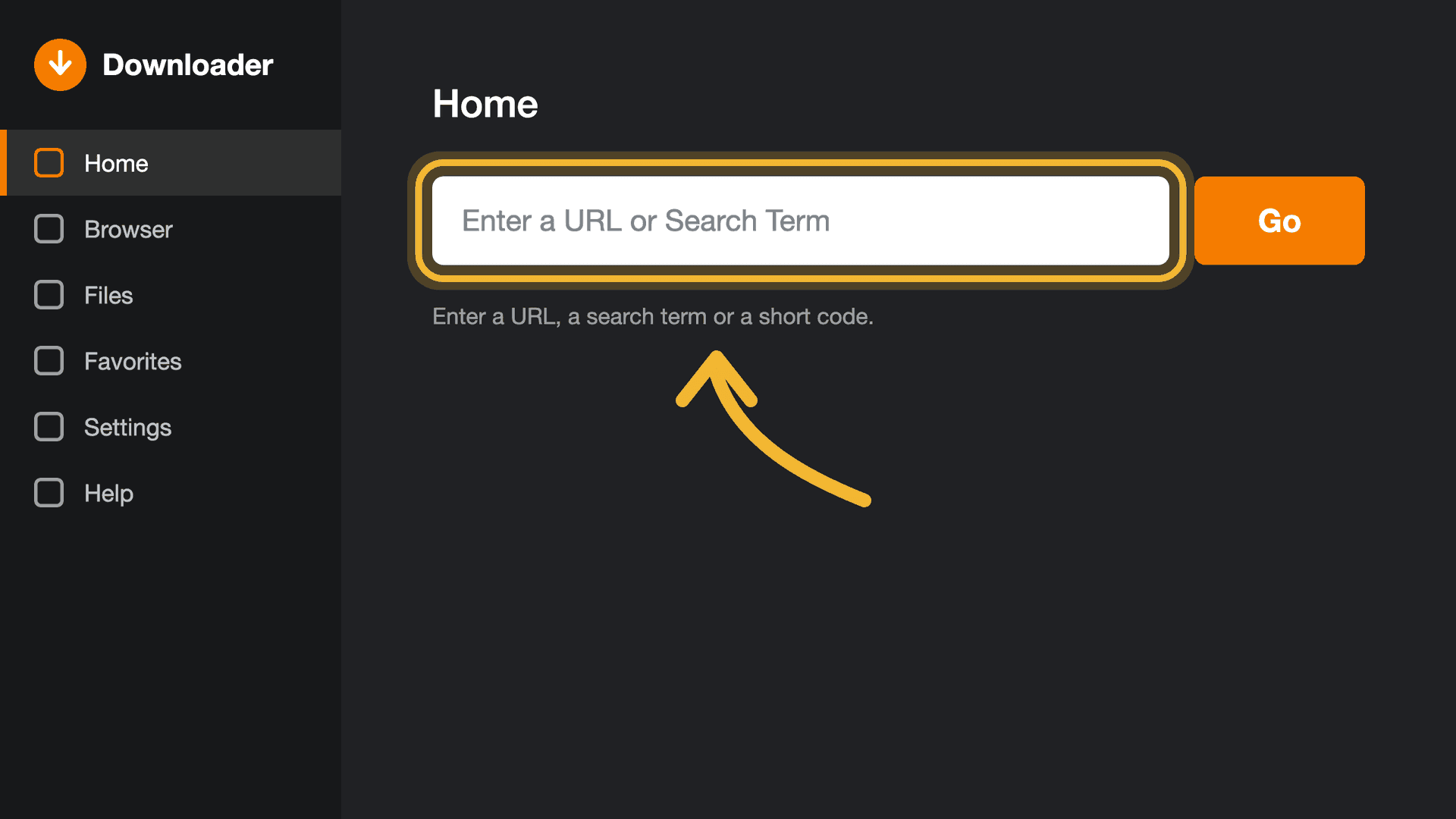
If it asks for access to your files, allow it. On the Home tab, select the address box at the top.
- 2
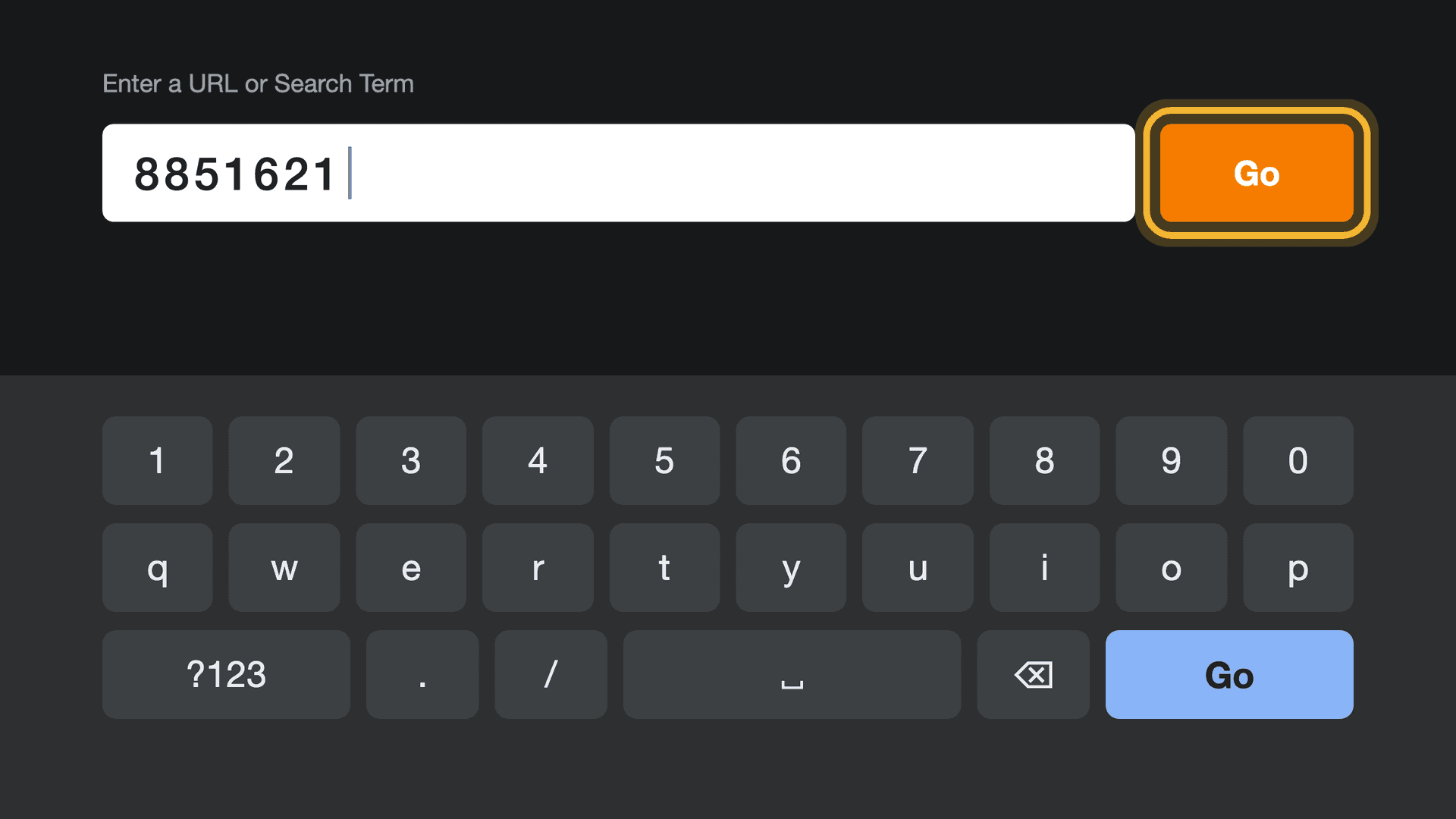
Type 8851621 and press Go
Type 8851621 with the remote, then press Go. Downloader finds OSM PLAYER and downloads it: about 200 MB.
- 3
Press Install, then Open
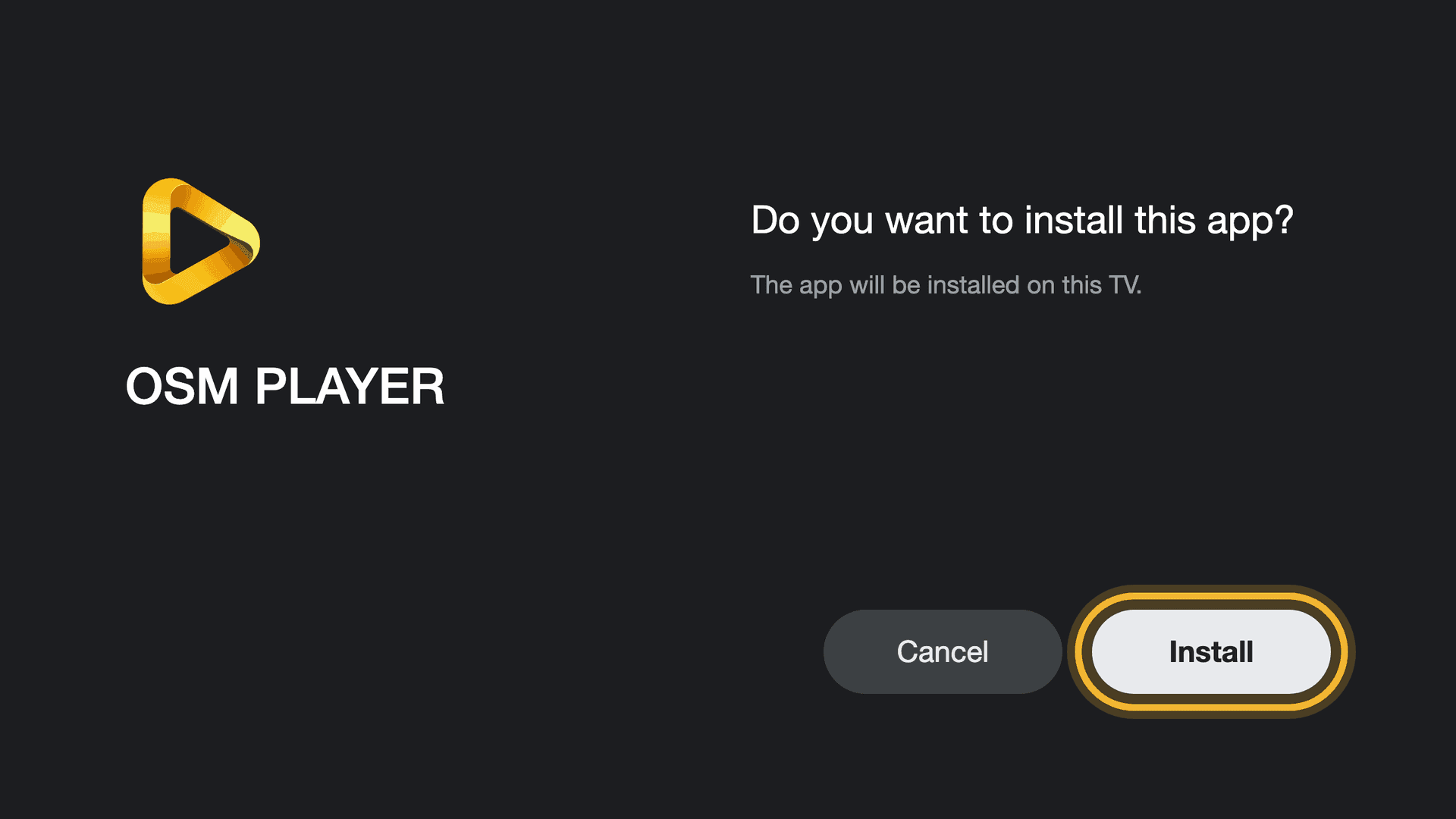
When the download is done, Android asks whether to install OSM PLAYER. Press Install, then Open.
If Android asks for permission
The first time, Android may say that Downloader isn't allowed to install apps. That is a one-time safety switch.
On a Fire TV, the switch is in Settings, My Fire TV, Developer options, Install unknown apps. If Developer options is missing, open Settings, My Fire TV, About and press the device's name seven times.
- 1
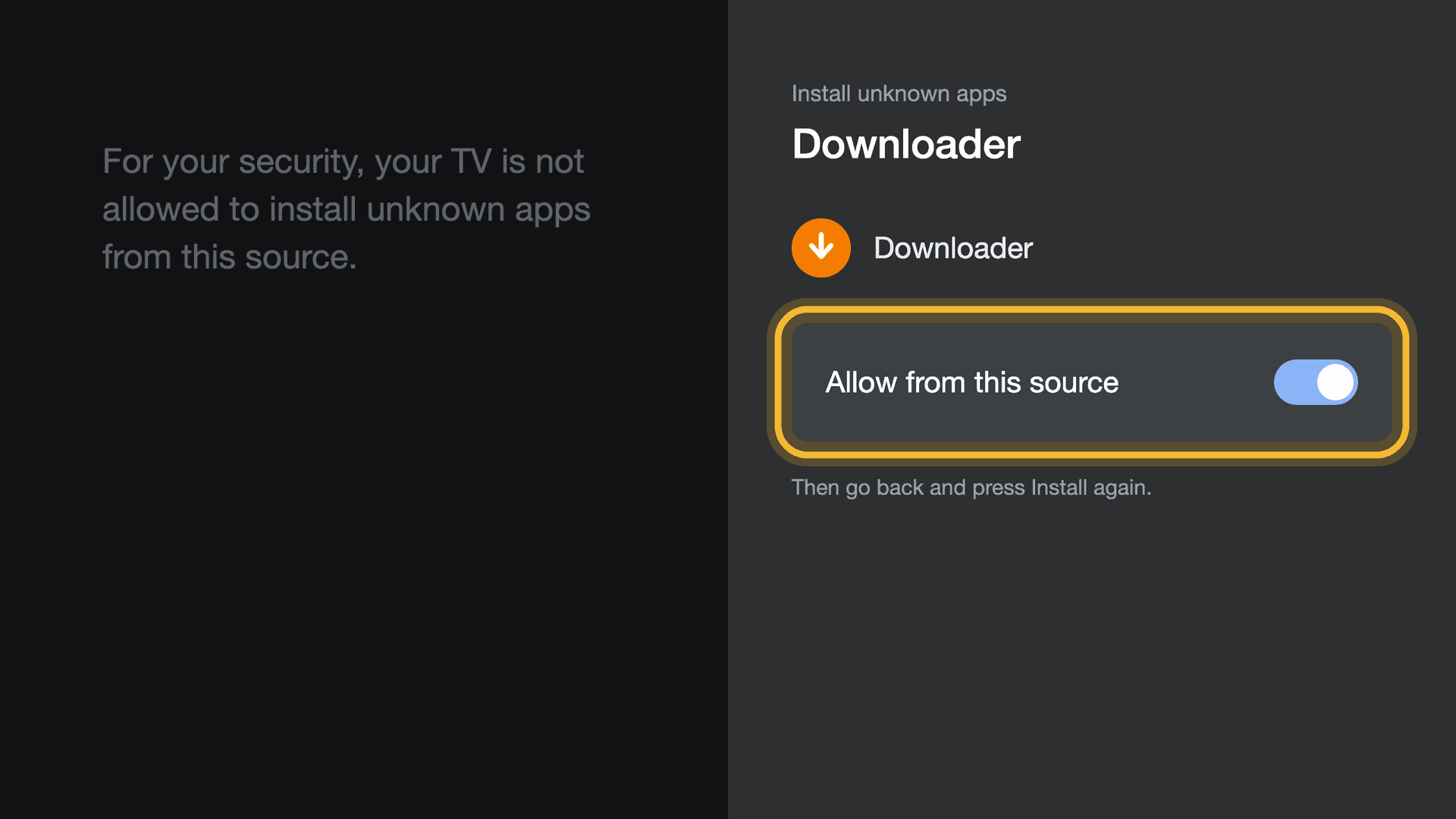
Turn Downloader on
Choose Settings, turn on “Allow from this source” for Downloader, go back and press Install again.
Add your playlist
Once OSM PLAYER is installed, Downloader offers to delete the file it downloaded. You can: OSM PLAYER stays installed.
- 1
Note the MAC address and device key
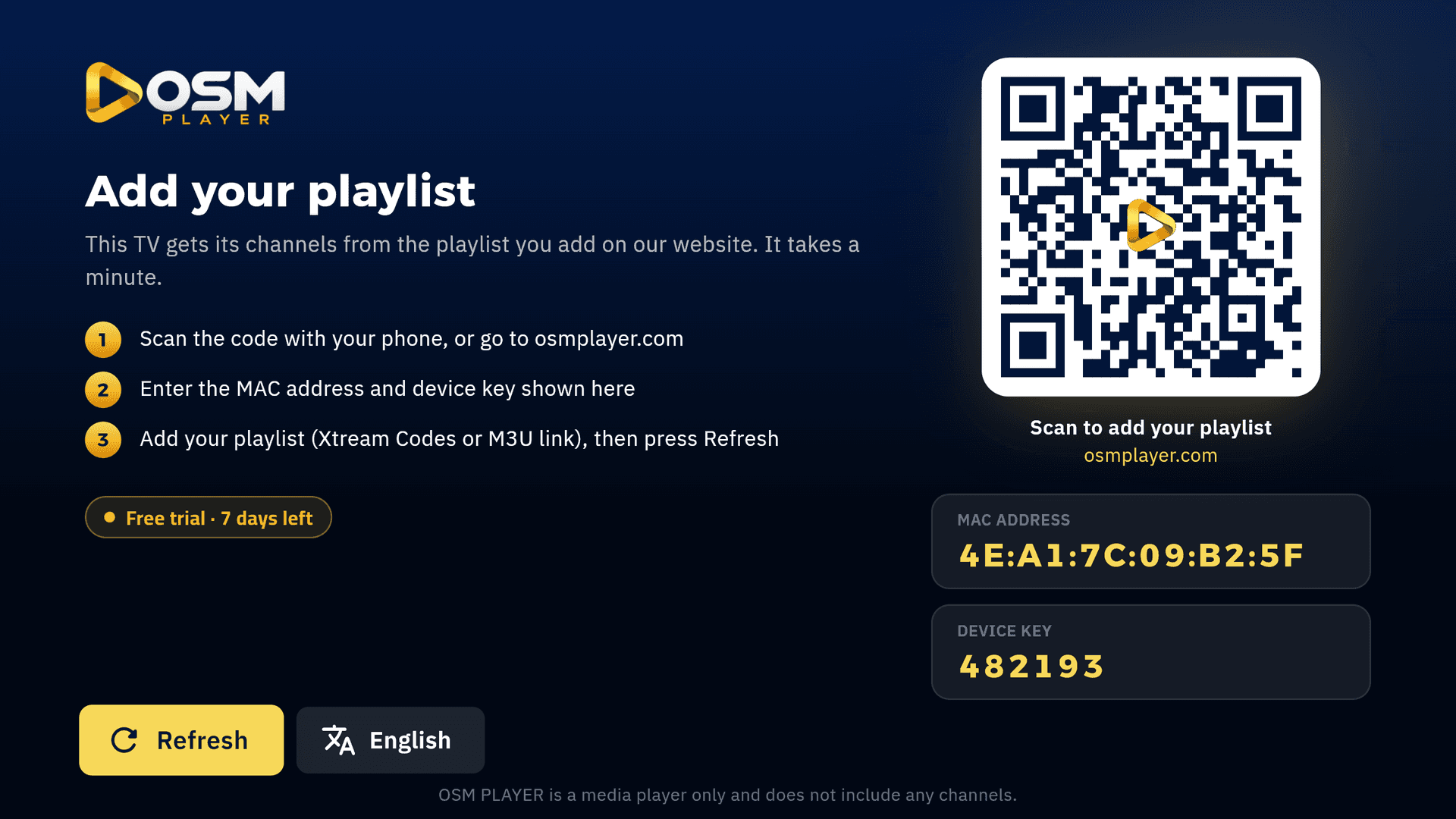
OSM PLAYER opens on its start screen, with the MAC address, the device key and a QR code. Your 7-day free trial starts now.
- 2
Add your playlist from your phone
Scan the QR code, or open Manage playlist and type the MAC address and device key. Add your Xtream Codes login or M3U link.
- 3
Press Refresh on the TV
Your channels, films and series appear.
Updated 6 Oct 2026