Start with the Amazon Appstore
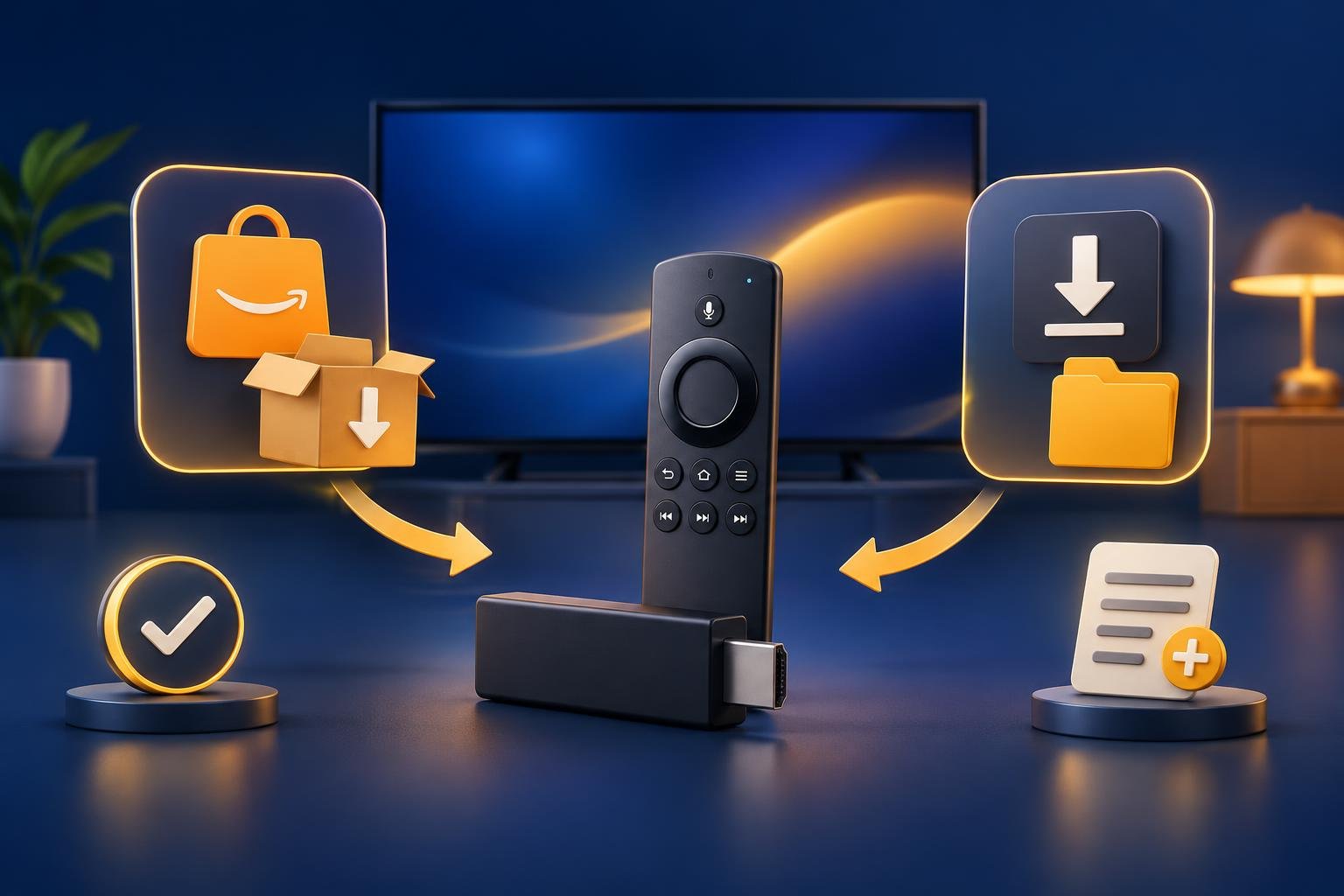
The Amazon Appstore is the first route to try because it does not require you to allow installation from another app. Search for OSM PLAYER using Fire TV’s search or Appstore interface. Our Fire TV installation page covers the supported Fire TV route, but an individual store listing can still depend on the device and marketplace.
If the app does not appear, do not immediately assume you need Downloader. Check the exact model in your device information and the country or region associated with your Amazon account. Store availability can differ between countries. Changing your account region is not a guaranteed fix and can affect access to other apps.
- 1
Search for OSM PLAYER
Use Fire TV’s search and look for the app listing. The Downloader code is not an Amazon Appstore search term.
- 2
Install from the listing
Select the download or installation option shown on your device. If Amazon says the app is unavailable or incompatible, note that message before trying another route.
- 3
Open the installed app
Launch OSM PLAYER. If you see the MAC address, device key and QR code, installation has succeeded; you do not need Downloader.
When the Downloader route is useful
Downloader is an alternative for installing the Android app on compatible Fire OS devices. It is useful when you need the direct installation route rather than the Appstore listing. It adds two tasks: downloading the APK installation file and allowing its installation. It does not add channels, activate the player or solve a rejected playlist login.
Check the operating system before proceeding. Fire TV branding alone is not enough: Amazon now has both Fire OS and Vega OS devices, sometimes with very similar names. The Android APK route described here must not be assumed to work on Vega OS. If you cannot establish compatibility, stop before downloading rather than repeatedly trying the same file.
For example, the Fire TV Stick 4K Plus (2025) and Fire TV Stick 4K Max, second generation (2023), use Fire OS. The Fire TV Stick 4K Select (2025), Fire TV Stick 4K, third generation (2026), and Fire TV Stick HD (2026) use Vega OS. Match the full model and generation, not just “4K” or “HD.”
- Appstore available for your device: use that route first.
- Compatible Fire OS device: Downloader is an alternative.
- Vega OS or uncertain model: do not assume Android APK compatibility; check the store listing or ask support.
Install with Downloader code 2067786
Once you have confirmed a compatible Fire OS device, open Downloader or install it from the Amazon Appstore. Code 2067786 goes into Downloader’s address or code entry field. It is a download shortcut, not a playlist password, device key or activation code. Our Downloader code instructions explain this installation route.
Keep the remote nearby while the file downloads: Fire TV may ask you to approve installation before it can continue. A completed download alone does not mean the app is installed. The useful checkpoint is whether the installer finishes and OSM PLAYER opens, not whether Downloader has saved a file.
- 1
Enter the download code
In Downloader’s entry field, type 2067786 and submit it. Alternatively, enter tv.osmplayer.com/osmplayer.apk in that same field.
- 2
Follow the installation prompt
When the APK finishes downloading, proceed with installation. If Fire TV blocks it and asks for permission, use the checks in the next section.
- 3
Open OSM PLAYER
After installation completes, launch the app. Look for its first-start screen before moving on to playlist setup.
If Fire TV asks for installation permission
On applicable Fire OS devices, installation permissions are found through Settings, usually under My Fire TV or, on some televisions, Device & Software. Wording varies by version: look for Developer Options and an installation permission such as Install unknown apps or Apps from Unknown Sources. These instructions are not a Vega OS installation method.
If Developer Options is hidden, open About within that device-settings section. Highlight the device-name entry and select it seven times—not the About heading itself. A message saying “No need, you are already a developer” means the menu is already enabled. Press Back once and look for Developer Options.
Where permissions are listed by app, allow Downloader to request installation, then return to it and try the installer again. You do not need ADB debugging or the separate diagnostic Developer Tools Menu for this process. If the permission list is empty or Downloader is absent, do not treat that alone as proof of a permanent restriction.
- 1
Read the permission message
Check whether Fire TV is blocking installation or reporting a different problem, such as an incompatible file. Permission changes will not fix an operating-system mismatch.
- 2
Allow the required installation
Use the installation permission available on your Fire OS version. If it is per app, enable it for Downloader rather than unrelated apps.
- 3
Retry or record the error
Return to Downloader and resume installation. If it still fails, give our support team the full device model, software version and exact on-screen message; do not send playlist passwords.
What the first-start screen should show
The first time OSM PLAYER opens, it shows a MAC address, a six-digit device key and a QR code. A free seven-day trial with every feature begins. Reaching this screen confirms that the app is installed and running. An empty player at this point is expected, not evidence that the installation failed.
OSM PLAYER is a media player only. It does not sell, host or include channels, films, series or playlists. You supply a playlist from your own provider that you have the right to watch. Reinstalling the app will not populate it with content, and paying for activation does not buy any content either.
After the trial, your playlists stay saved, but playback pauses until you activate that device. Activation is per device, using its own MAC address; it is separate from downloading the app and adding a playlist. Use the device activation page when you need to activate, not as a remedy for an APK that will not install.
- Cannot download or install: check the store, device compatibility or installation permission.
- App opens but has no playlist: complete playlist setup.
- Saved playlist will not play after the trial: check device activation.
Add your own playlist after installation
Use your phone for playlist setup rather than typing long credentials with the remote. Scan the QR code shown in OSM PLAYER, or open Manage playlist and sign in with the displayed MAC address and device key. Keep these details private. They identify the app installation you are managing, not your provider’s account.
If the connection test fails, check the provider details rather than installing the app again. A copied link may be incomplete, or the server address, username or password may be wrong. For an M3U-specific failure, follow playlist link troubleshooting before changing unrelated Fire TV settings.
- 1
Enter your playlist details
Add an M3U or M3U8 link, or enter your Xtream Codes server URL, username and password. You can optionally add an EPG link and a PIN.
- 2
Test and save
Press Test connection and save the playlist. An M3U link containing get.php?username=…&password=… is recognised and stored as Xtream Codes, which brings films, series and the TV guide.
- 3
Refresh on Fire TV
Return to OSM PLAYER and press Refresh. Check that your playlist appears and try playing an item you are entitled to watch.
- 4
Start your playlist setup
With the app installed, open Manage your playlist on your phone to add your provider’s details and use the seven-day trial on your Fire TV.
Published 7 Nov 2026