What you need before connecting the box
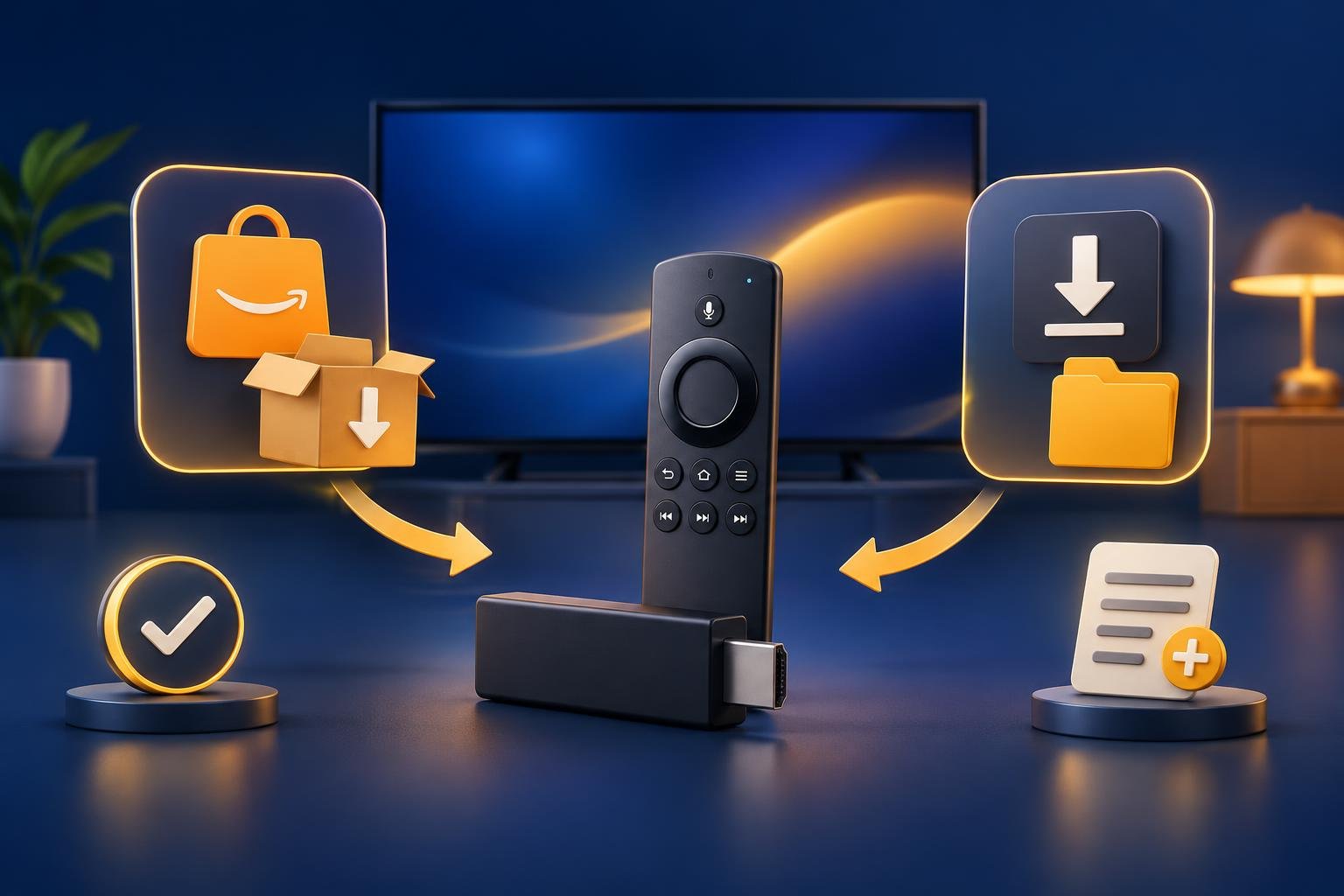
Use an Android TV or Google TV device, or an Amazon Fire TV Stick. A box described only as a “TV box” does not tell you which operating system it runs. Check its model and app store before starting. You also need an available HDMI input on your Samsung TV.
OSM PLAYER’s native Samsung app is coming soon; it is not in Samsung’s app store yet. An attached device runs the app independently and sends its picture to the TV. Our Samsung TV compatibility guide explains that distinction. You do not need to change Samsung’s operating system.
Keep both remotes nearby. The Samsung remote selects the TV input and controls the TV; the box or stick’s remote handles its setup and apps. Some combinations allow shared controls, but use the supplied device remote first rather than assuming the Samsung remote will operate everything.
- An Android TV or Google TV box, or a Fire TV Stick, with its remote and batteries.
- The device’s supplied power adapter and power cable, plus access to a power outlet.
- An HDMI cable for a box; check the package because not every device includes one.
- Your Wi-Fi name and password, or Ethernet equipment if the device supports it.
- An M3U or M3U8 link, or Xtream Codes details, from a provider whose content you have the right to watch.
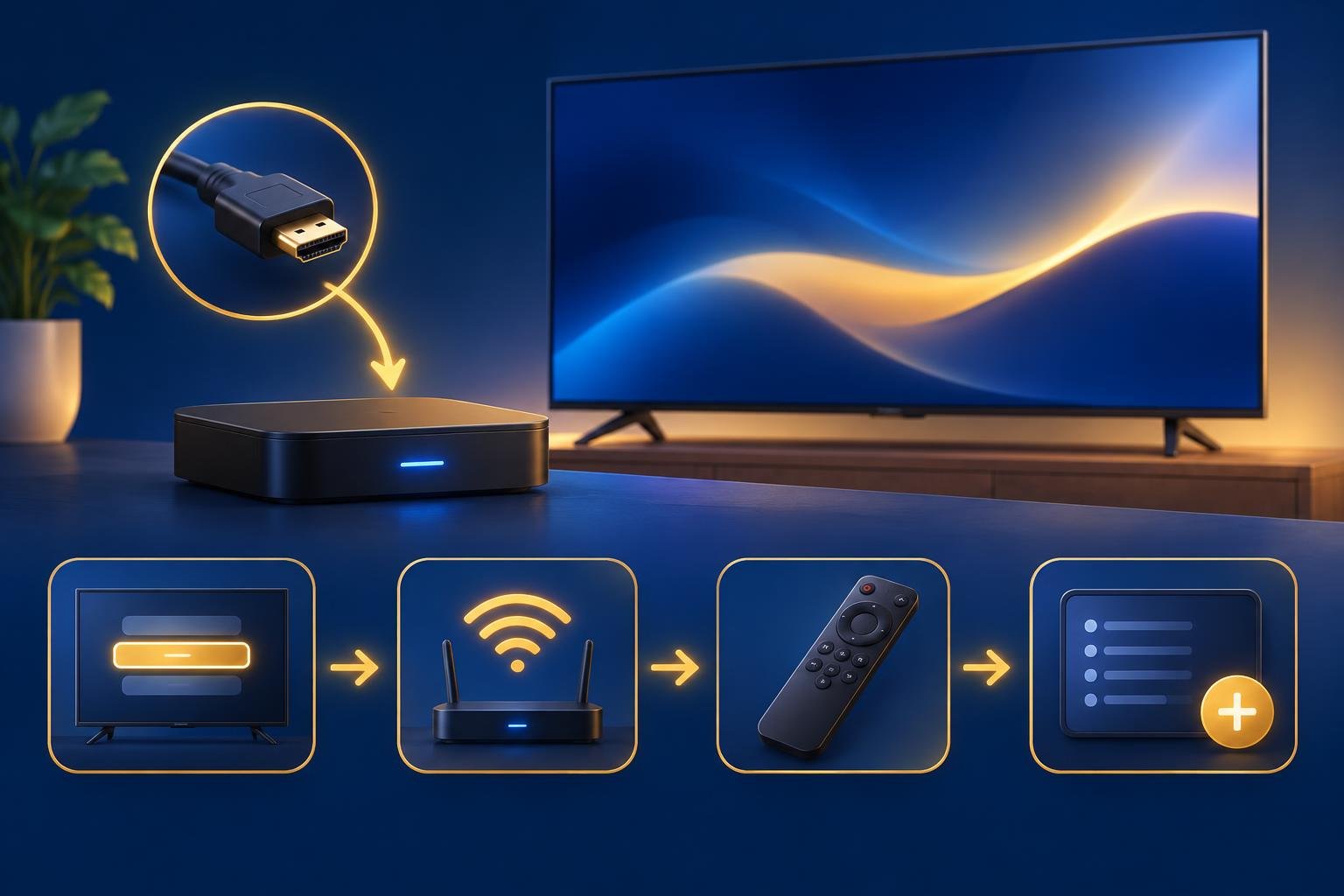
Connect HDMI and the device’s power supply
HDMI and power are separate connections. A cable between the box and TV does not replace the box’s power adapter. For a stick, connect its power cable too, using the supplied adapter rather than assuming a TV USB socket can power it reliably.
If your Samsung has a One Connect Box, look for the HDMI inputs there rather than behind the screen. Read the port label before connecting anything. Remembering whether you used HDMI 1 or HDMI 2 makes the next step straightforward and prevents selecting an empty input.
- 1
Connect the HDMI output
For a box, connect its HDMI output to a free HDMI input on the TV or One Connect Box. For a stick, insert it into the HDMI input, using its supplied extender if needed.
- 2
Connect the power supply
Attach the device’s power cable and supplied adapter, then plug the adapter into an outlet. Check that the connectors are fully seated.
- 3
Turn on both devices
Switch on the TV and power up the attached device. A device light may indicate power, but the on-screen startup picture is the useful confirmation.
Select the matching input on the Samsung TV
Use the Samsung remote to open the input selector. Depending on your model, look for Source, or open Home and look for Connected Devices. Select the HDMI number you connected. The device may appear simply as “HDMI 1” rather than showing its brand or model; that alone does not indicate a fault.
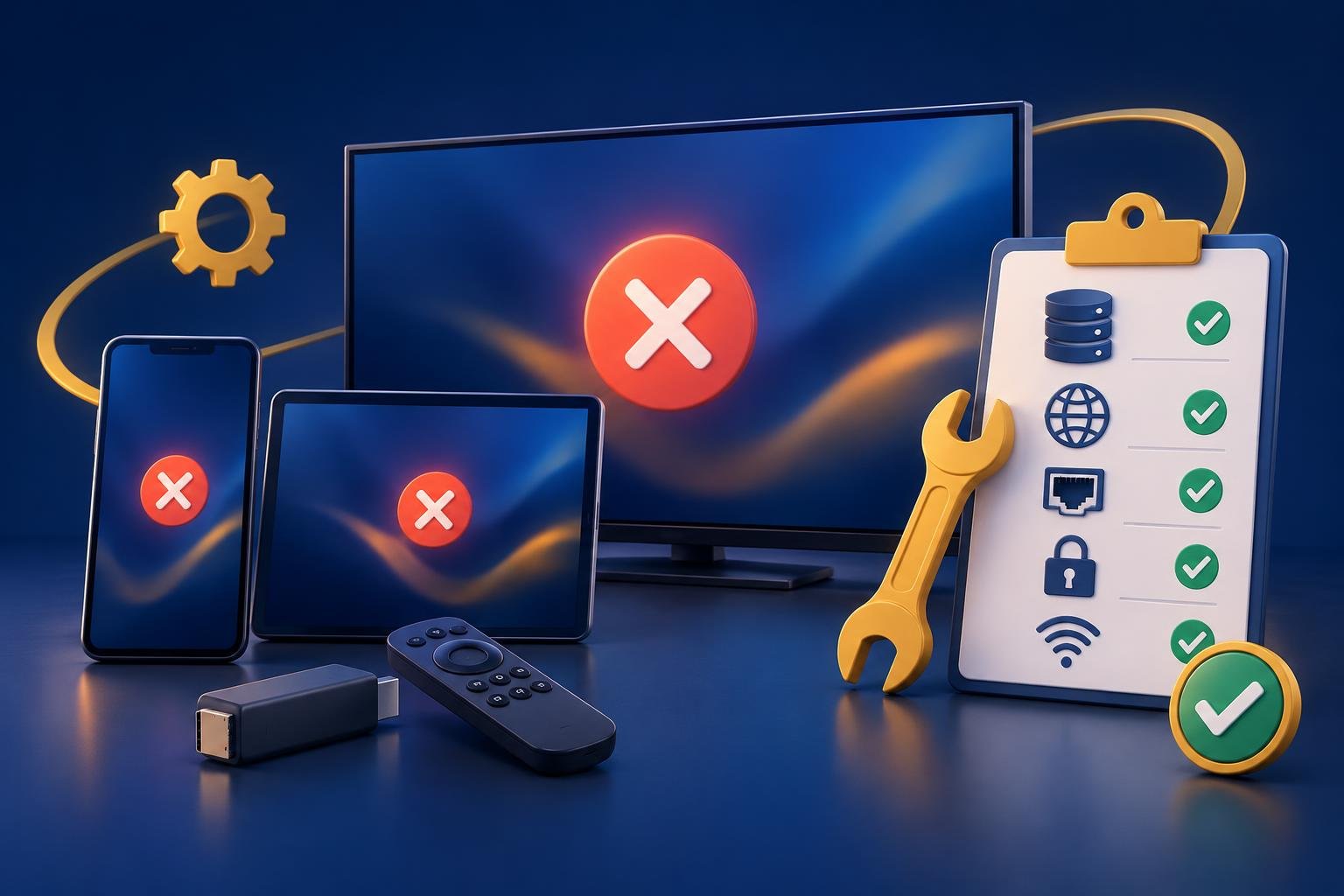
You should now see the box or stick’s startup screen, setup instructions or home screen. “No Signal” or “HDMI Cable Disconnected” means you should check the physical connection first. Neither message tells you that your playlist, player or internet connection is faulty.
- 1
Check the device’s power
Confirm the adapter is connected to a working outlet and the box or stick is powered on. Wake it with its own remote if necessary.
- 2
Match the input number
Compare the selected input with the label beside the connected HDMI port. A device plugged into HDMI 2 will not appear on HDMI 1.
- 3
Reseat the HDMI connection
Disconnect and firmly reconnect the HDMI cable or stick. For a box, check both ends of the cable.
- 4
Try another HDMI port
Move the device to another available port and select that new input on the TV. If a box still gives no picture, try another HDMI cable.
Connect the stick or box to the internet
Once the device’s setup screen appears, switch to its remote. Follow the on-screen instructions to pair the remote if requested, choose your language and connect to your network. Your Samsung TV’s Wi-Fi connection is separate: it does not automatically give an attached box internet access through HDMI.
Choose your Wi-Fi network and enter its password, or connect Ethernet if your device supports it. Complete any account sign-in the device requests. Phone-assisted setup varies by model, so follow the instructions actually displayed. If phone pairing fails, look for an option to continue setup on the TV using the remote.
Before installing the player, confirm that the device can open its app store and load search results. If it cannot, return to the device’s network settings. Check the Wi-Fi password and connection there, not in Samsung’s settings. Having a picture over HDMI proves the display connection works, not that the device is online.
Install OSM PLAYER on the attached device
Stay on the attached device’s home screen, not Samsung’s home screen. On Android TV or Google TV, search Google Play for OSM PLAYER and install it. Our Android TV installation page covers this route. If you find yourself browsing Samsung’s TV apps, return to the HDMI input before continuing.
On Fire TV, search the Amazon Appstore for OSM PLAYER. The Fire TV Stick guide covers the platform, while the Firestick installation steps explain the store and Downloader routes. Check your exact device model before following installation instructions rather than assuming every stick has identical menus.
Open the installed app. Its start screen shows a MAC address, a six-digit device key and a QR code, and the free seven-day trial begins with every feature. The app is empty until you add your playlist. OSM PLAYER is a player only: it does not sell, host or include channels, films, series or playlists.
Add your playlist and confirm playback
Use your phone for playlist entry so you do not have to type a long link with the remote. Scan the QR code on the app’s start screen, or open Manage playlist and sign in with the displayed MAC address and device key. Use the details from this attached device, not a network address from Samsung’s settings.
- 1
Enter your playlist details
Add your M3U or M3U8 link, or enter your Xtream Codes server URL, username and password. You can also add an optional EPG link and protect the playlist with a PIN.
- 2
Test and save
Press Test connection, then save. If the connection fails, check the details against your provider’s message, including the server address, port and password.
- 3
Refresh the app
Return to the TV and press Refresh in OSM PLAYER using the attached device’s remote. Confirm that your playlist’s categories appear.
- 4
Start playback
Open a category and select an available item you have the right to watch. Confirm that picture and sound play, then try changing channels with the device’s remote.
Published 8 Nov 2026