What the playlist PIN protects
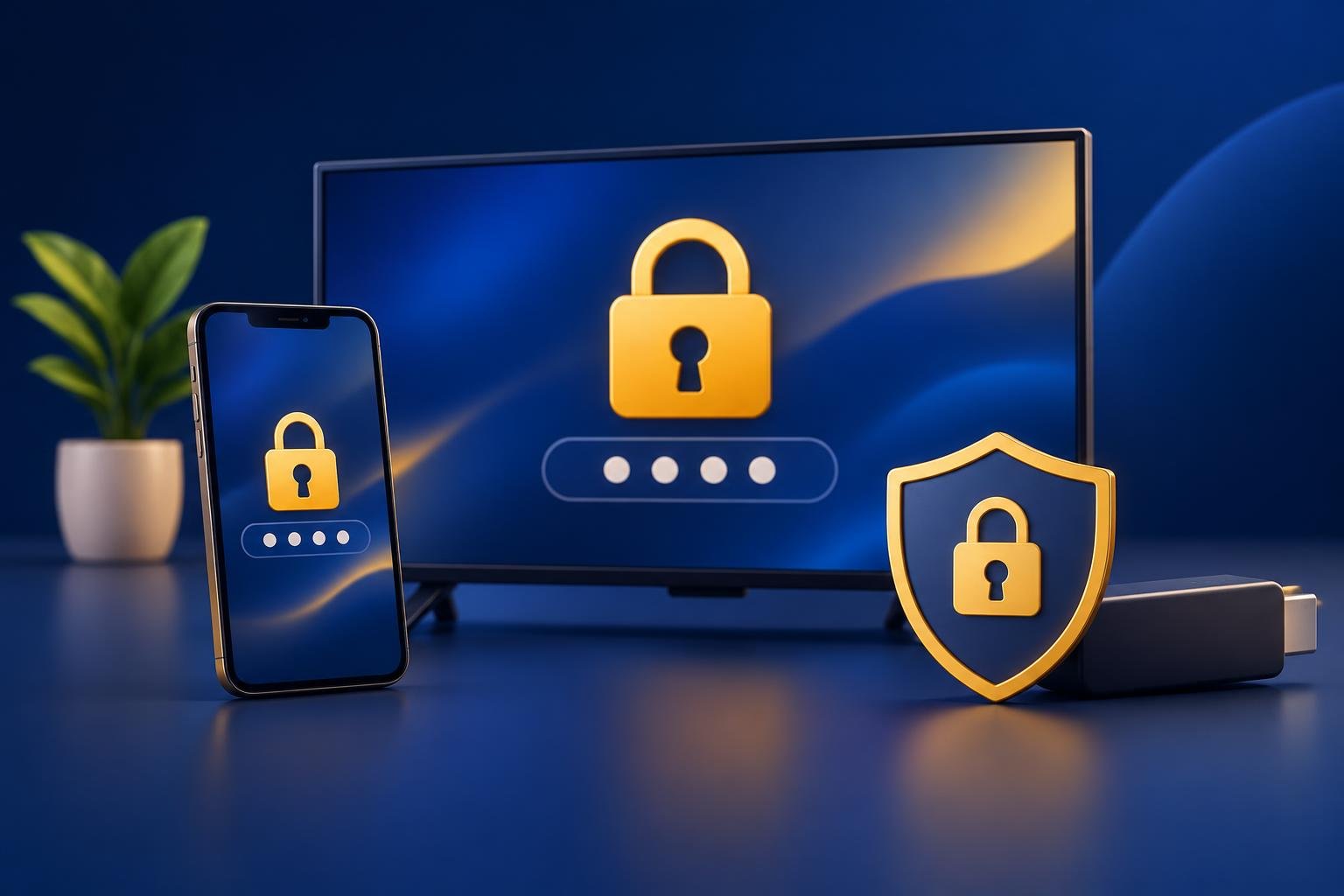
A playlist PIN protects access to the chosen playlist inside OSM PLAYER. Several playlists can be added to one device, and each can optionally have a PIN. That gives a household a way to keep one playlist separate from another. It does not turn a shared playlist into a filtered version for a different viewer.
If you are looking for IPTV playlist parental control, this distinction matters: the supported control is a lock on the whole playlist. Do not rely on it to lock individual categories, hide selected titles, or apply age ratings. Anything available in an unlocked playlist should be treated as accessible to the person using it.
OSM PLAYER is a media player only. It does not sell, host or include channels, films, series or playlists. You add content from your own provider that you have the right to watch. A PIN changes access to a playlist in the app; it does not change what your provider supplies.
- Playlist PIN: protects the chosen playlist in OSM PLAYER.
- Device or profile lock: protects a different layer of access, depending on the device.
- Provider password: authenticates the playlist connection; it is not the playlist PIN.
Sign in with the correct device details
Start with the TV, stick, box, phone or computer you want to protect. Open OSM PLAYER and find its MAC address and device key. On first start, these appear alongside a QR code; later, you can also find them in Settings. The device key has six digits. It is a management sign-in detail, not a specification for the playlist PIN.
Scan that device’s QR code with your phone, or open Manage your playlists and sign in with its MAC address and device key. If you have more than one device, check the details carefully before changing anything. The MAC address and device key guide explains where to find them and how they identify your device.
- 1
Open the intended device
Use the device people will actually watch on. Keep its displayed details in view while signing in on your phone.
- 2
Match the device details
Enter the MAC address and device key shown by that copy of OSM PLAYER, rather than details saved from another TV.
- 3
Check the playlist selection
Identify the playlist you want to protect. If you cannot find it, check your device details before adding a duplicate or changing another playlist.
Set a PIN for the chosen playlist
In playlist management, select the playlist you want to protect and look for its optional PIN field. Set the PIN there, keeping the playlist’s connection details intact. The M3U or M3U8 link, or the Xtream Codes server, username and password, still tells the app how to connect to your provider. The PIN serves a separate purpose.
Choose a PIN you can remember but do not share with someone whose access you want to restrict. Follow any requirements displayed by the form rather than assuming the PIN uses the same format as the six-digit device key. If you are adding a playlist at the same time, enter your provider’s details and the optional PIN before testing and saving.
- 1
Select one playlist
Make sure you are changing the intended playlist, particularly if several have similar names.
- 2
Set its optional PIN
Enter the PIN in the playlist’s PIN field. Do not put it in the provider password field or append it to the playlist URL.
- 3
Review the other playlists
Decide which other playlists need their own protection. Locking one playlist does not automatically lock the others on that device.
Save and refresh the app
Press Test connection and save the playlist. A connection test and a lock check answer different questions: one checks the provider connection, while the other checks access to the playlist on your device. A successful connection is not proof that the PIN protection is working. You still need to return to OSM PLAYER and verify it there.
After saving, press Refresh in the app on the device you are protecting. Saving the change on your phone is not the final step. If the playlist does not behave as expected afterward, first check that you saved the intended playlist under the correct device details, then refresh that device again before making further changes.
- 1
Test and save changes
Use Test connection, then save. If the connection fails, recheck the provider details rather than replacing them with the playlist PIN.
- 2
Refresh the intended device
Return to OSM PLAYER and press Refresh. Refresh the TV or box you signed in for, not another device using the same provider login.
Check the lock before handing over the remote
Try opening the chosen playlist on the viewing device and check that access is blocked without the PIN. Then verify that your PIN allows access. Do not rely only on seeing the PIN saved in playlist management. The useful check is what someone holding the remote can actually open in the app.
Also review every playlist left unlocked. A protected playlist does not help if another accessible playlist contains the material you wanted to restrict. Playlist separation works only when the unlocked options are suitable for the person using them. Do not assume the app filters their contents for you.
The PIN’s relock timing is not specified here, so do not assume it asks again after every restart or immediately after leaving playback. Check the situation in which you will hand over the remote. A prompt before the app opens may belong to the device’s own controls rather than to your OSM PLAYER playlist.
- Check access without entering the PIN, not only whether the correct PIN works.
- Review what remains available through other unlocked playlists.
- If access is not blocked as expected, do not treat the playlist as protected.
Keep device keys and provider credentials private
Your MAC address and device key let you sign in to playlist management. Keep them private, along with the QR code that opens that route. The playlist PIN is not a replacement for protecting those details. Someone who needs the remote does not necessarily need access to the page where playlists are managed.
Protect your provider credentials too. An M3U link can contain a username and password inside the URL, so hide the entire link in screenshots rather than covering only a separate password field. Playlist logins are stored encrypted and sent only to your own device, but that does not make a screenshot or copied message safe to share.
If you watch on another screen, do not assume this device’s PIN setup protects that screen too. Check playlist protection separately on each device. Before using the same provider login elsewhere, read about using a playlist on two devices so you can distinguish app settings from your provider’s connection allowance.
If you cannot find the PIN field, cannot confirm that access is blocked, or have forgotten the PIN, avoid assuming there is a universal reset code. Your next step is to contact OSM PLAYER support with your device type and a description of what happens, without including your provider password or full playlist URL.
Published 15 Nov 2026