Check whether one stream or every stream freezes
Start by describing what stops. Does the picture pause while sound continues? Does a loading indicator appear? Can you still open the player’s menus with the remote? If the whole Fire TV interface stops responding, skip ahead to the power and restart checks. If sound continues but the picture stays black, use the separate sound but no picture checks rather than treating it as ordinary buffering.
Next, compare a small number of streams from your existing playlist. One failing stream points toward a narrower problem than everything stopping, but neither result proves the cause. A particular stream can expose a playback issue, and several streams can share an upstream fault. The useful result is a repeatable pattern you can test again.
- 1
Observe the original stream
Note the time, what appears on screen and roughly how long playback lasts before stopping. Watch for a few minutes, or long enough to reproduce the usual interruption.
- 2
Compare two other streams
Keep the same device, player and connection. Give each comparison a similar viewing period rather than switching away after a few seconds.
- 3
Retry the original stream
If only that stream still fails, report that pattern to your provider. If all three stop, continue with the shared device and connection checks below.
Restart playback and check the stick’s power
Leave the stream and open it again once. If that restores playback only briefly, note how long it lasts; repeatedly reopening it is not a lasting fix. Then check whether the Fire TV home screen and other menus respond normally. A stick that restarts, loses its picture or freezes outside the player needs device-level attention before you blame the playlist.
Find your exact Fire TV Stick model in its device information or on its packaging. Power arrangements differ: some models support power from a TV USB port, so that connection is not automatically wrong. If your model came with a power adapter, use its supplied adapter and cable for this comparison. An insufficient-power notification is evidence of a power problem, not a measurement of internet speed.
- 1
Check the power connection
Look for a loose cable or a low-power warning. Follow the power requirements for your model; dismissing a warning does not correct the supply.
- 2
Restart the stick
Disconnect the stick’s power for 10 seconds, then reconnect it. Wait for the home screen to return before reopening your player.
- 3
Repeat the same comparison
Play the original stream again without changing network settings. If the whole interface still freezes, keep that detail separate from any video-only interruptions in your report.
Compare Wi-Fi conditions without changing everything
On Fire TV versions with the standard network tool, open Settings, then Network, highlight your connection and press Play/Pause on the remote. Check whether the problem is between the stick and router or between the router and internet. Some devices also offer a speed test or advanced details; those options are not present on every model. Record an “Unable to Connect” message exactly rather than assuming it means your playlist login is wrong.
A successful network check shows connectivity at that moment, not that every stream can play reliably. Likewise, a speed test on your phone does not measure the stick’s connection behind the TV. Compare playback on the stick after one physical or network change, keeping the same stream and roughly the same observation period.
Repeated DNS changes are not a reliable first step. DNS helps locate servers, but changing it does not directly test weak Wi-Fi, insufficient power or an overloaded stream source. There is also no universal Fire TV “buffer setting” to increase. Do not hunt for an unnamed setting or copy values meant for another player; first establish which comparison actually changes the symptom.
- 1
Improve the wireless path
If practical, move the router and stick closer together or reduce obstructions between them. Retest before changing anything else.
- 2
Pause competing transfers
Temporarily pause large downloads or backups on your home network. Retry the same stream; improvement suggests shared connection capacity may be involved.
- 3
Compare another available band
If your router exposes separate Wi-Fi bands and the stick supports them, try the other one. Do not assume either band always wins: distance and obstacles affect the result.
- 4
Record what changed
Write down whether interruptions stopped, became less frequent or stayed the same. One clean interval is useful evidence, but repeat the comparison before calling the problem solved.
Try Ethernet only with a compatible adapter
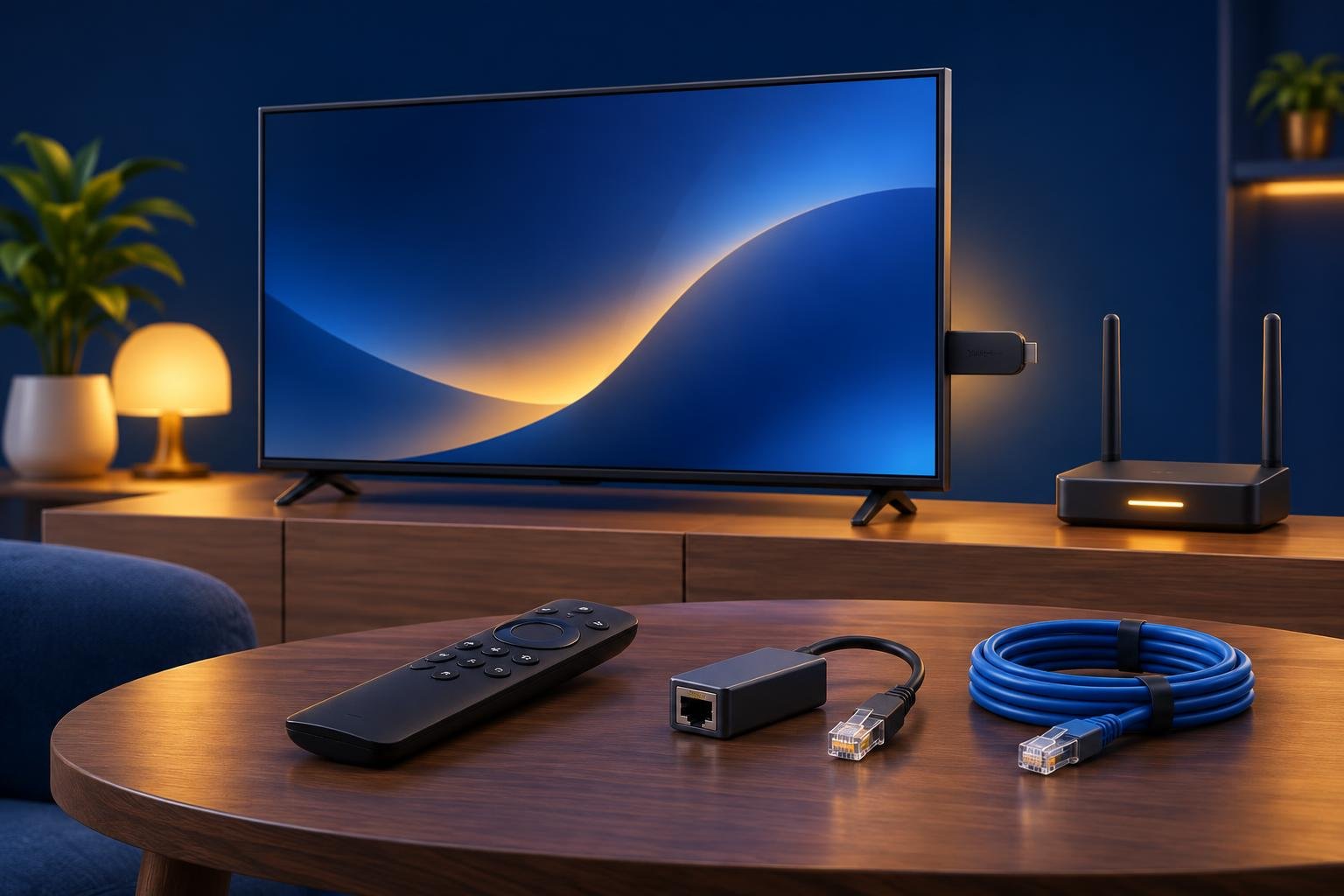
Ethernet is a useful comparison because it removes the wireless link between your stick and router. It does not bypass your internet connection or repair a provider-side stream. Before buying or connecting anything, confirm that the adapter supports your exact Fire TV Stick model and its power arrangement. A spare USB Ethernet adapter is not automatically compatible.
With a compatible adapter connected to your router and the stick using the wired connection, replay the same stream. If Ethernet repeatedly works while Wi-Fi fails, investigate the wireless path. If both fail similarly, Wi-Fi becomes a less likely explanation, but the result does not distinguish an internet-route issue, a device problem and an upstream stream fault on its own.
- Keep the same player, playlist and stream during the wired comparison.
- Confirm that the stick is actually using Ethernet before interpreting the result.
- Borrow a compatible adapter if possible; this check does not require buying one before trying the earlier steps.
Check whether another device is using the same login
A provider may limit simultaneous playback, but there is no universal one-device rule or error message. A TV, phone or second player might still be using the same login. Stop playback on those devices, then retry on the Fire TV Stick alone. If that changes the pattern, ask your provider to confirm your connection allowance rather than assuming the player caused the interruption.
For a device comparison, stop the stick’s playback before trying the same stream on another device on the same home network. If the second device works repeatedly while the stick fails, investigate the stick’s connection or playback path. If both fail one after the other, that supports checking the shared network or stream, not a definite verdict. See playlist use on two devices for the distinction between app activation and provider limits.
Report the pattern instead of repeatedly reinstalling
Reinstalling before recording the problem removes a useful baseline and can create extra setup work. It also cannot repair Wi-Fi interference or a failing stream source. If you use OSM PLAYER and have changed a playlist through Manage playlist, press Refresh in the app to load the saved change. Refresh is not a general cure for an unchanged stream that keeps stopping.
Send stream-specific failures to your provider and player-specific behaviour to app support. Include the details below, but never share your playlist password or device key in a public post. For help with our app, use contact our support team. If you are considering a different player, use these checks before switching players to make the comparison useful rather than expecting a different app to repair every interruption.
OSM PLAYER is a player only: it does not sell, host or include channels, films, series or playlists. You add your own provider’s M3U or Xtream Codes playlist. If you want to compare playback while keeping your stream and network unchanged, the next step is to try OSM PLAYER on Fire TV with its free seven-day trial.
- Exact stick model, software version shown on the device and player version.
- Whether one stream, several streams or the entire Fire TV interface stops.
- Time of failure, approximate time until interruption and the exact error wording.
- Power source, Wi-Fi or Ethernet, and the result after restarting.
- Results on another device, tested without simultaneous playback.
Published 17 Nov 2026