Compare one affected stream with another
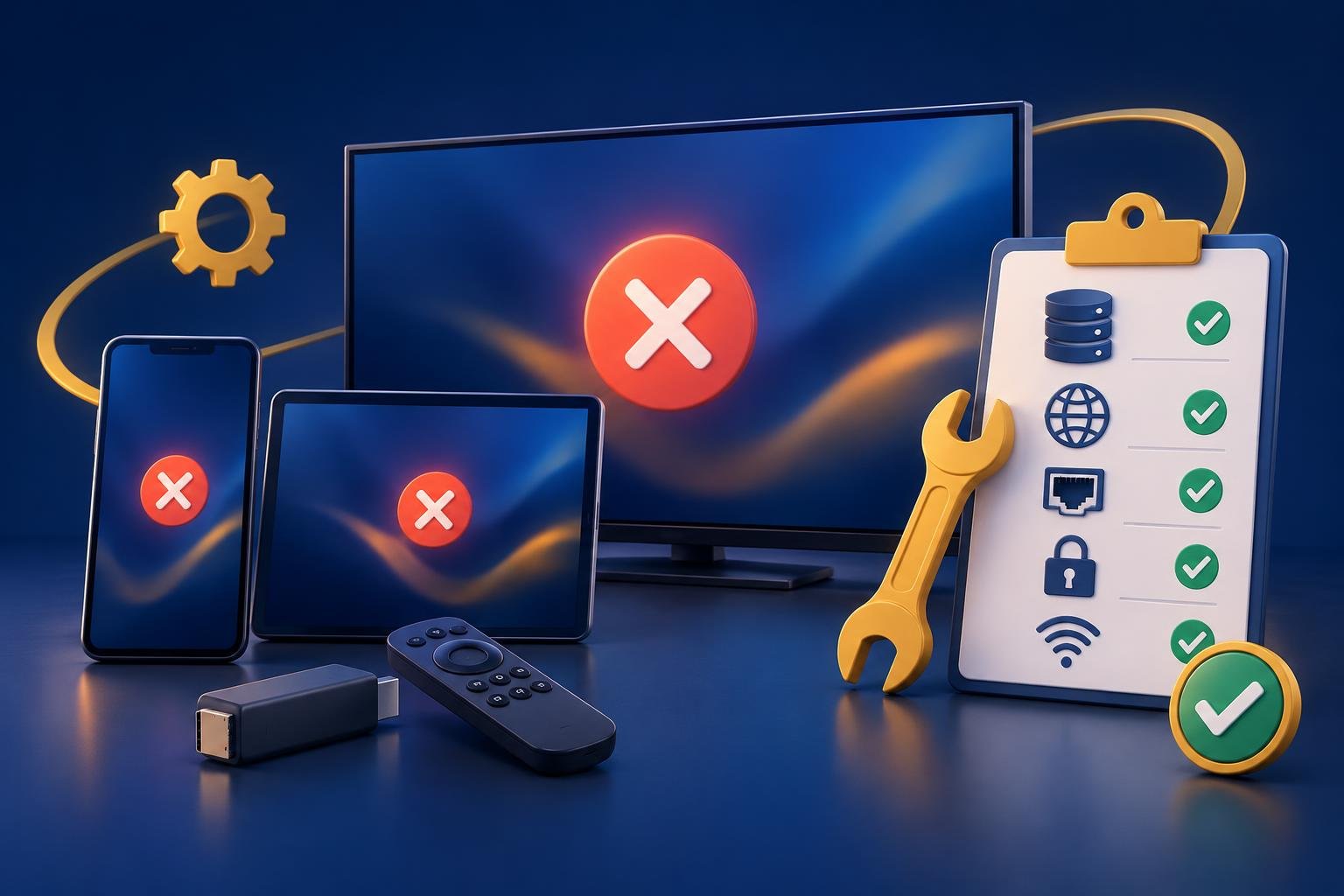
Stay on the same device and compare one affected stream with two or three others from your authorized playlist. Keep the connection and display settings unchanged. In OSM PLAYER, return to the channel list and select another entry with your remote. You are checking the pattern, not trying to repair the playlist by repeatedly changing channels.
If some streams show video and others only play sound, stream-specific encoding or playback handling becomes more plausible. It is not proof of an unsupported codec: the affected source could also have a problem. If every stream is black, widen the checks to the app, device output, and HDMI chain rather than assuming every source has failed.
- One entry fails: record that exact entry and whether it fails every time.
- A particular version fails: note any HD or UHD label, but do not treat the label as verified format information.
- All entries fail: check whether the device Home screen and another video app still display correctly.
- The playlist itself never opens: that is a different symptom; follow the playlist loading checks instead.
Check the HDMI connection on external devices
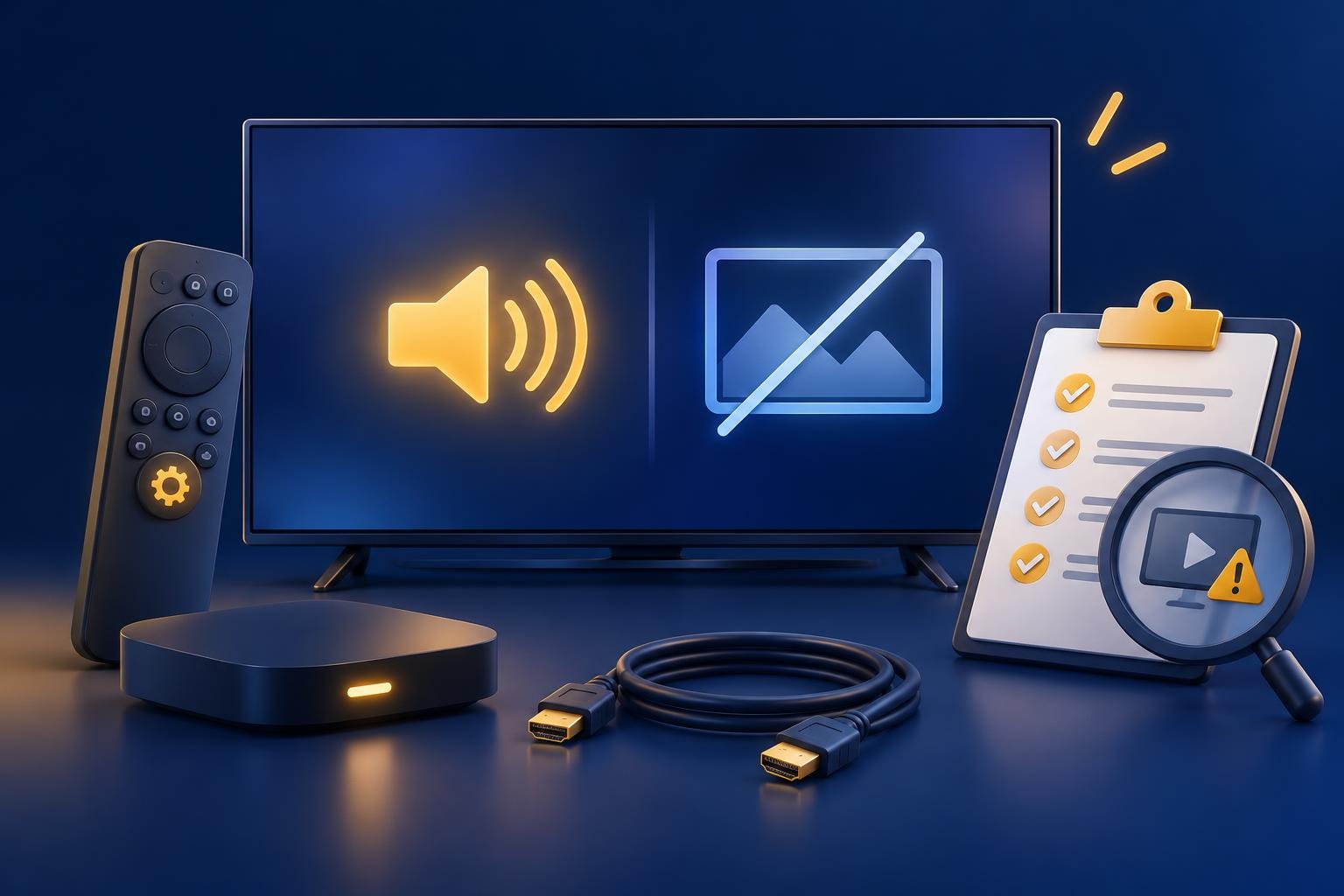
Skip cable checks if playback runs directly on the screen you are watching, without an external HDMI device. For a connected stick or box, sound does not rule out an HDMI fault. A loose or damaged connection can leave audio working while the picture disappears. Check this before deleting the app or changing your playlist details.
If the screen explicitly reports an HDCP error, write down the exact message. Do not infer HDCP from an unexplained black picture alone. For a Samsung TV connected to an external box, the HDMI connection walkthrough also helps you check the physical setup and selected TV input.
- 1
Reseat the HDMI connection
Turn off the connected equipment, then firmly reconnect both ends of the HDMI cable, or reseat the stick and any HDMI extension. Select the matching input on your TV.
- 2
Test another port and cable
Try another TV HDMI port, then a known-working cable suitable for your device’s intended output. Change one item at a time so you can tell which change helps.
- 3
Connect directly to the TV
Temporarily bypass an HDMI switch, receiver, or soundbar. If video returns, the intermediate equipment or its connections need further checking.
- 4
Restart using device power
Disconnect the streaming device’s power for one minute, then reconnect it. Removing HDMI alone does not restart a separately powered box.
Understand codec, resolution, and device compatibility
Video and audio are decoded separately. Your device may handle the audio track while failing to handle the video format or its particular requirements. Even a specification saying H.264 or HEVC is supported does not guarantee playback of every stream using that codec. Profile, level, resolution, frame rate, and bitrate can all affect compatibility.
Device names matter here. Two boxes running Android TV do not necessarily have the same decoding capabilities, and Fire TV generations have different limits. Use the exact model when checking specifications. Our Android TV app page and Fire TV Stick page explain app availability; installing a compatible player is not a promise that every video format will work.
Check for available updates to the player, device system, and TV firmware. Updates may address playback or output issues, but cannot be assumed to add missing hardware capabilities. If format information is available, ask your provider whether an authorized alternative within your device’s limits exists. Changing an M3U login to Xtream Codes does not itself convert the video into a supported format.
- Do not assume a different player can overcome unsupported decoding.
- Avoid copying decoder or HDR settings from instructions for a different device.
- Do not disable frame-rate or dynamic-range matching universally because of a brief transition.
- Keep factory reset as a last resort: it clears data and does not establish codec compatibility.
Collect useful details before contacting support
A useful support report describes the boundary of the failure: what still displays, which streams fail, and what changes the result. Include actual installed version numbers rather than only saying everything is updated. If you contacted your provider, include any video-format details they supplied without posting playlist credentials, passwords, or full authenticated links publicly.
OSM PLAYER is a media player only; it does not sell, host, or include channels, films, series, or playlists. Player support can help investigate playback, while your provider may need to check the source or confirm its encoding. Gather the details below, then contact our support team with your comparison results as the next step.
- Exact stick or box model and generation, plus the TV model.
- Player version, device system version, and TV firmware version.
- Whether app controls, the device Home screen, and the TV’s own menu remain visible.
- Whether HDMI connects directly or passes through a receiver, soundbar, or switch.
- Exact error text, including any explicit HDCP message.
- Which entries fail, which work, and whether the picture ever returns by itself.
- Results from another HDMI port or cable and the same stream on another device.
Published 14 Nov 2026