Install OSM PLAYER from Google Play
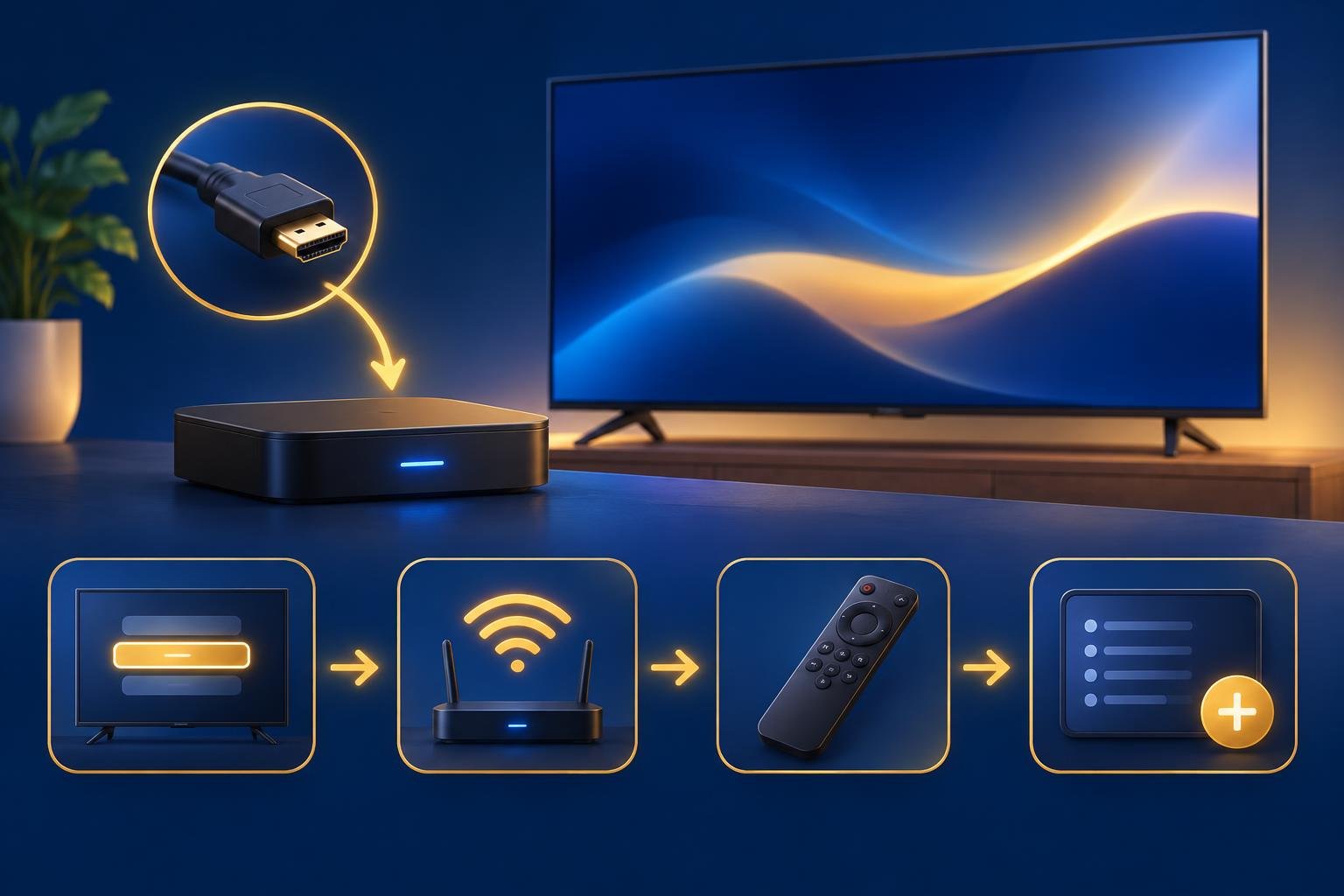
Start with your Google TV Streamer (4K) connected to the TV and its initial Google setup finished. Installing the player happens on the Streamer; entering your playlist happens later on the website. You do not need to paste an M3U address into Google TV’s search box or install a second app on your phone.
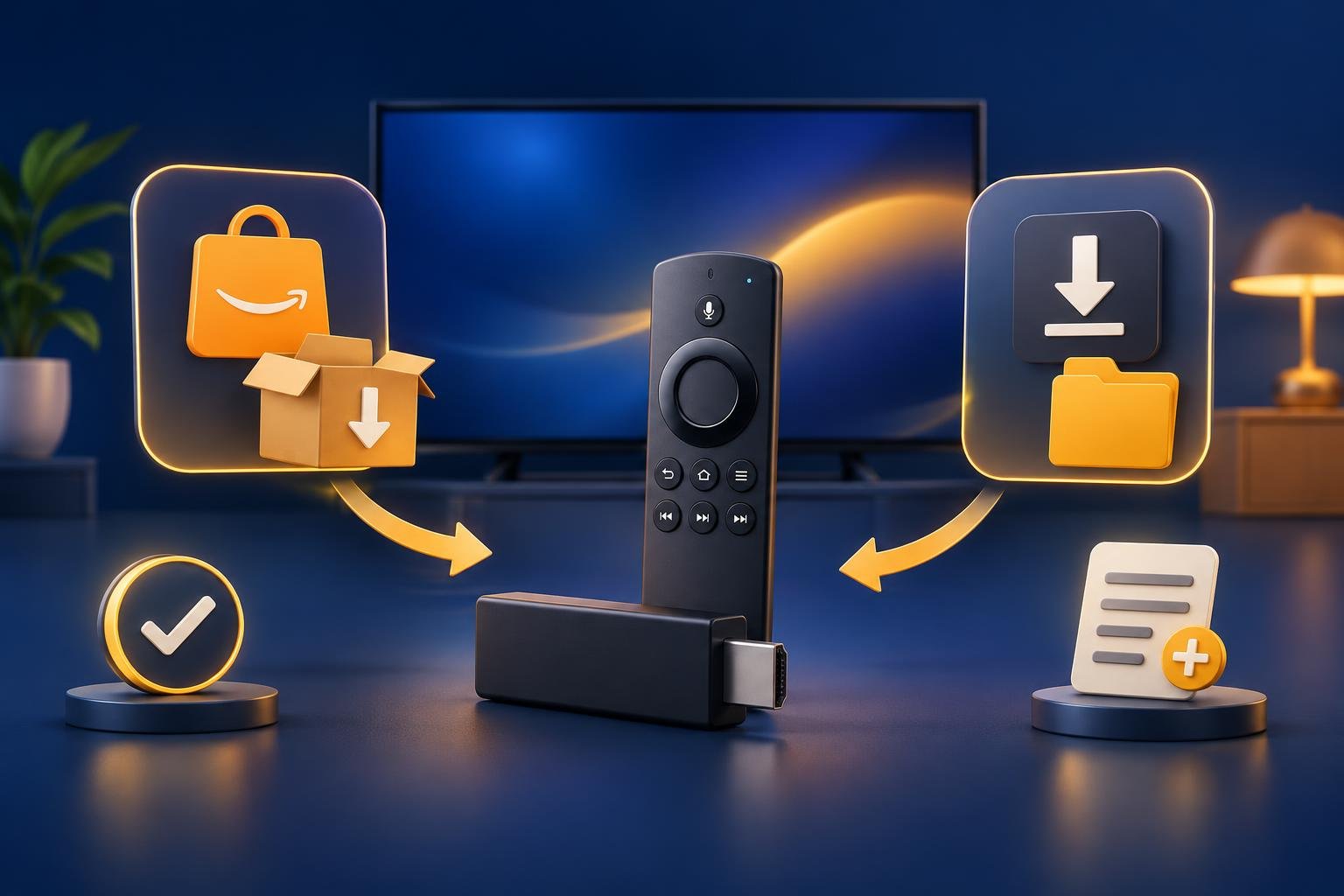
OSM PLAYER is a player only. It does not sell, host or include channels, films, series or playlists. An empty app after installation is therefore expected, not an installation fault. The Android TV installation page covers the supported Google Play route for Google TV and Android TV devices.
- 1
Find the app
Use Search or the Apps tab on the Google TV home screen to search for OSM PLAYER. To avoid typing, use the remote’s Assistant button and say the app’s name.
- 2
Install and open
Select OSM PLAYER, choose Install and open it when installation finishes. If it appears to be missing afterward, check whether you are using a child’s profile, where app visibility can be restricted.
Find the QR code and device details
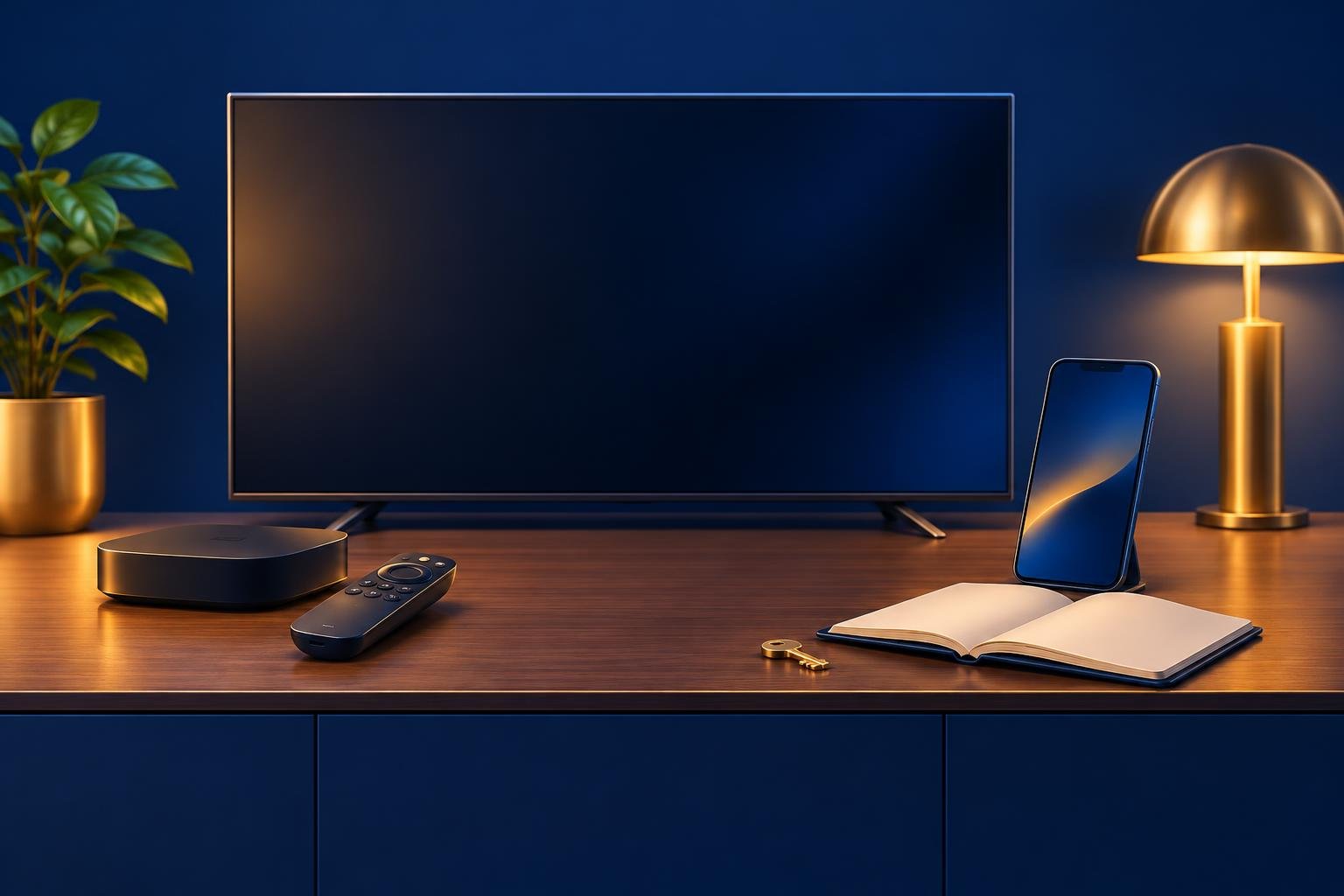
On first opening, the app shows a MAC address, a six-digit device key and a QR code. Leave that screen visible while you get your phone. The free seven-day trial with every feature begins on first start, but playback still needs a playlist you supply from your own provider.
Use the QR code inside the player, not the earlier QR code used to set up the Streamer through Google Home. They serve different purposes. The player’s MAC address and device key identify the device for playlist management; use those displayed values rather than looking for a network address in Google TV’s system settings.
If you have already moved past the start screen, you can find the MAC address and device key later in the app’s Settings. Keep the key and any screenshot containing it private. You need these details for the manual sign-in fallback, so check that all six digits are readable before switching your attention to the phone.
Open playlist management on your phone
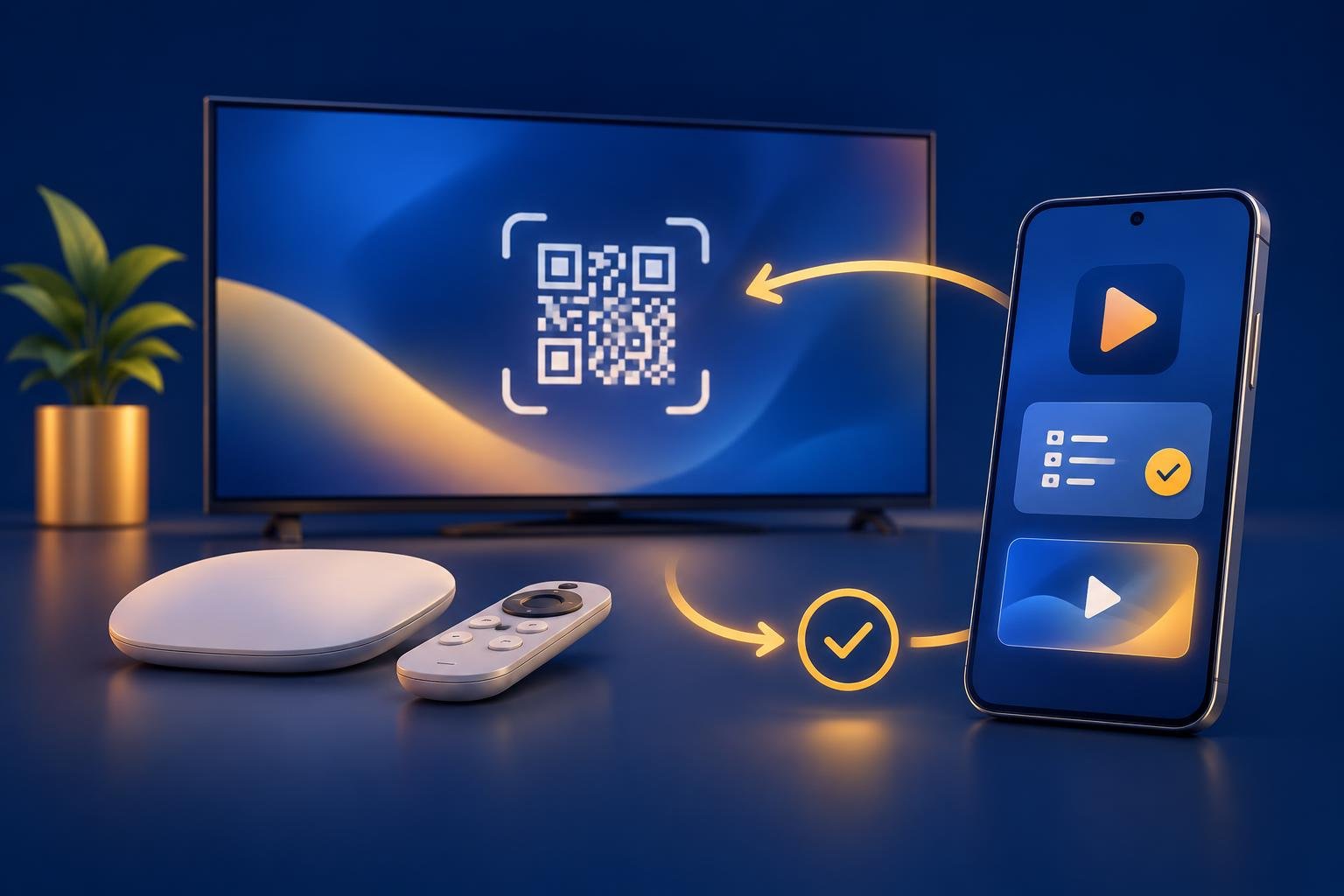
Scan the player’s QR code with your phone’s camera and open the page it offers. This moves playlist entry to your phone’s browser, where you can paste long links and passwords. You are setting up the player on the Streamer, not adding a playlist to a separate phone installation.
If scanning fails, you can reach the same setup without the camera. Open Manage playlist on your phone and sign in using the MAC address and device key shown by the player. There is no need to repeat the Streamer’s Google Home setup or change Google Home permissions to use browser-based playlist management.
- 1
Scan the app code
Aim your phone’s camera at the QR code on the player’s screen. If it cannot focus, move closer or farther away until the whole code is clear, then open the detected link.
- 2
Use manual sign-in instead
If no link appears, open Manage playlist directly. Copy the app’s MAC address and all six digits of its device key into the sign-in fields.
- 3
Check any rejected details
Compare the entered values with the TV screen, including any leading zero in the device key. Use the details from this Streamer’s player, not another device where you previously installed it.
Enter your M3U link or Xtream Codes details
Choose the format that matches what your provider supplied. For an M3U or M3U8 playlist, paste the complete link. For Xtream Codes, enter the server URL, username and password separately. Copying on the phone avoids remote typing, but check that you have not included a space or line break from the message you copied.
An M3U link containing get.php?username=…&password=… is recognised and stored as Xtream Codes, bringing films, series and the TV guide. Other M3U files are read by the app itself, with live channels and films organised using the file’s group-title values. The playlist format therefore affects how its contents appear.
You can optionally add an EPG link and a PIN. Xtream Codes playlists bring their guide with them; an M3U playlist can use a separate EPG link. If you are unsure which details you received, compare M3U and Xtream Codes formats before placing a full playlist URL into a field intended only for a server address.
- M3U or M3U8: paste the complete playlist link, including its parameters.
- Xtream Codes: preserve the supplied server URL, including any port, and enter the username and password exactly.
- EPG: add the guide link supplied for your playlist if using a separate guide.
- PIN: optionally lock this playlist, especially if you plan to add several playlists to the device.
Test the connection, save and press Refresh
Testing and refreshing have different jobs. Test connection checks the details you entered before you save them. Refresh tells the player on your TV to retrieve the saved playlist. Finishing the phone form alone is not the last step, so keep your remote nearby even though you are not using it to type.
If the connection test fails, correct the details before moving on. For Xtream Codes, compare the server address, port, username and password with the provider’s original message. The Xtream Codes login checks explain those fields in more detail. Reinstalling the player does not correct a mistyped password or an incomplete server address.
- 1
Test the entered details
Press Test connection on the playlist management page. If it fails, check the copied details and confirm with your provider that the playlist access is still valid.
- 2
Save the playlist
Save after testing the connection. Playlist logins are stored encrypted and sent only to your own device.
- 3
Refresh the TV app
Return to the player on the Streamer and press Refresh. Check that the playlist’s categories or content appear; if nothing changes, confirm you saved it under the MAC address shown on this device.
Check playback before the trial ends
Open a live channel from your playlist and use the remote to switch to another. Check the guide for what is on now and next. If your provider supplies films or series through Xtream Codes, open those areas too. A visible category list confirms the playlist loaded, but you still need to check that its streams actually play.
Separate missing content from unstable playback. If only one item fails, ask your provider to check that stream rather than immediately replacing the saved playlist. If playback repeatedly buffers across several items, check the Streamer’s connection. Google TV Streamer has built-in Ethernet, so a wired connection is an available alternative to Wi-Fi without a separate Ethernet adapter.
When the seven-day trial ends, your playlists stay saved, but playback pauses until you activate the device. Activation pays for the player on that one device, not for content from your provider. Once playback works, follow the Smart TV playlist setup guide if you want to repeat the process on another supported device.
Published 11 Nov 2026