Confirm the operating system and app availability
An “Android” label does not tell you whether a box has a TV-focused interface or software intended for touchscreens. Ask for the exact model, whether it runs Android TV or Google TV, and its installed operating-system version. Google TV describes the interface; it does not, by itself, establish the numbered Android version underneath.
Check Play Protect certification as a separate buying question. Uncertified devices may miss updates, and some apps may not work correctly. Ask the seller to confirm the status shown in Google Play’s settings or About information; layouts vary. A “device is not certified” warning concerns the device, not your playlist, and disabling Play Protect does not resolve certification.
Next, confirm that your chosen player is available for that exact device through its TV app store. OSM PLAYER is available through Google Play on Android TV and Google TV; our Android TV compatibility page explains that route. It is a player only, with no channels, films or playlists included. Installing an app file is not proof that a touchscreen-oriented box will work comfortably with a remote.
- Ask for the exact model name, not just the product family or an “Android box” description.
- Confirm the installed system version and how the manufacturer supplies updates.
- Look for the TV version of your player, rather than assuming a phone app will be suitable.
Check support for your playlist’s video formats
“Supports M3U” answers how a player receives a playlist, not whether the box can decode everything it contains. M3U and Xtream Codes describe ways to supply playback information. Video codecs such as H.264 and HEVC, audio formats, and stream containers are separate compatibility questions. If those terms are unfamiliar, start with the playlist format differences before asking the seller.
Ask your provider which video and audio formats your playlist uses, then compare those requirements with the exact box’s decoder specifications. Check resolution, frame rate, HDR requirements and audio output separately. A 4K label does not promise support for every 4K stream, every HDR format or every sound format. General Android codec tables are not a guarantee for every TV box.
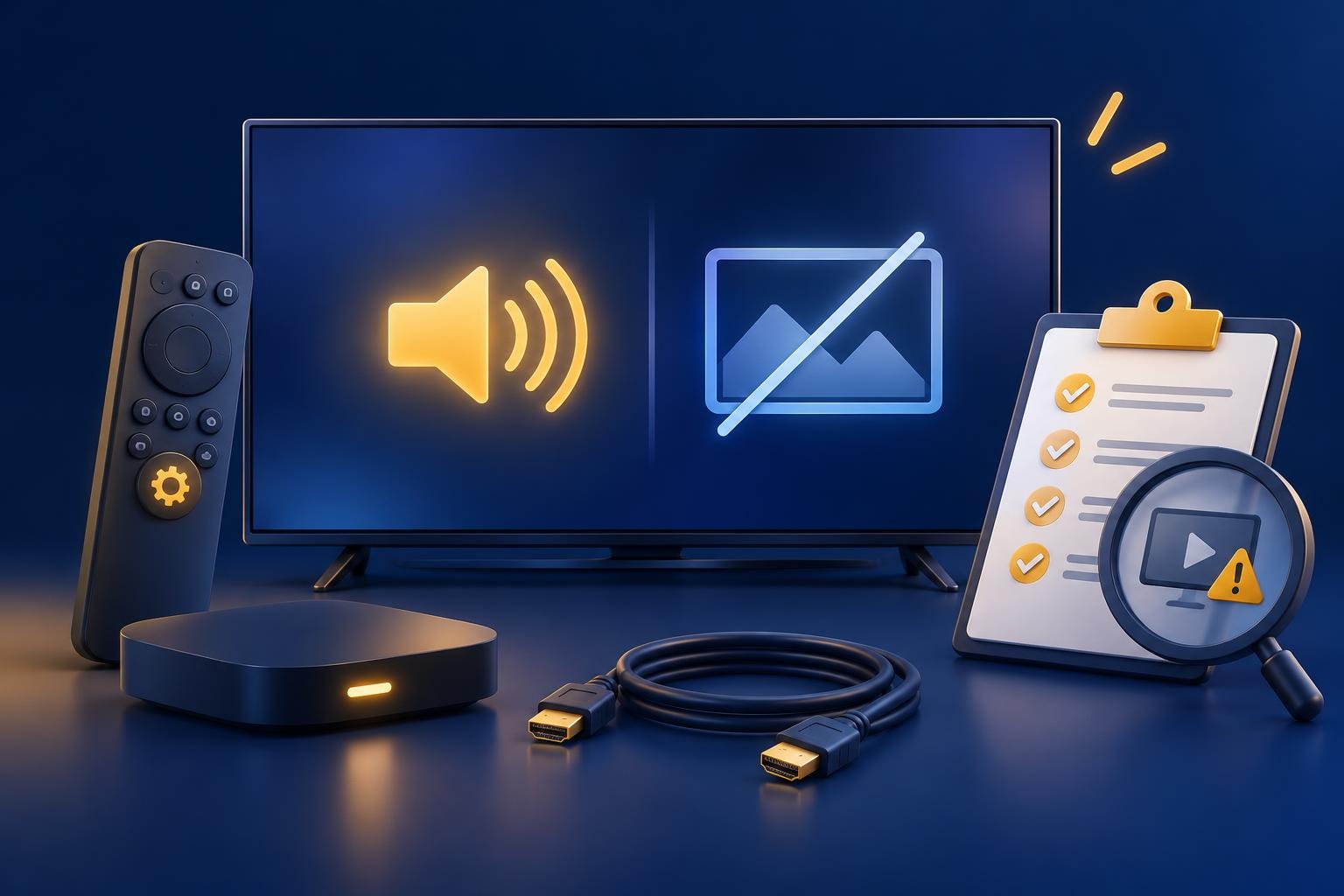
Your whole playback chain matters: box, player, TV and any soundbar or receiver. Where possible, test representative material you are entitled to watch before the return period ends. Sound without a picture suggests a different fault from repeated buffering; our sound without picture checks can help you separate decoding or display problems from a network issue.
- Video: confirm the required codec, resolution and frame rate together.
- HDR: check compatibility with your TV, not just an HDR badge on the box.
- Audio: confirm sound through the speakers or audio equipment you will actually use.
Look for practical Ethernet or Wi-Fi options
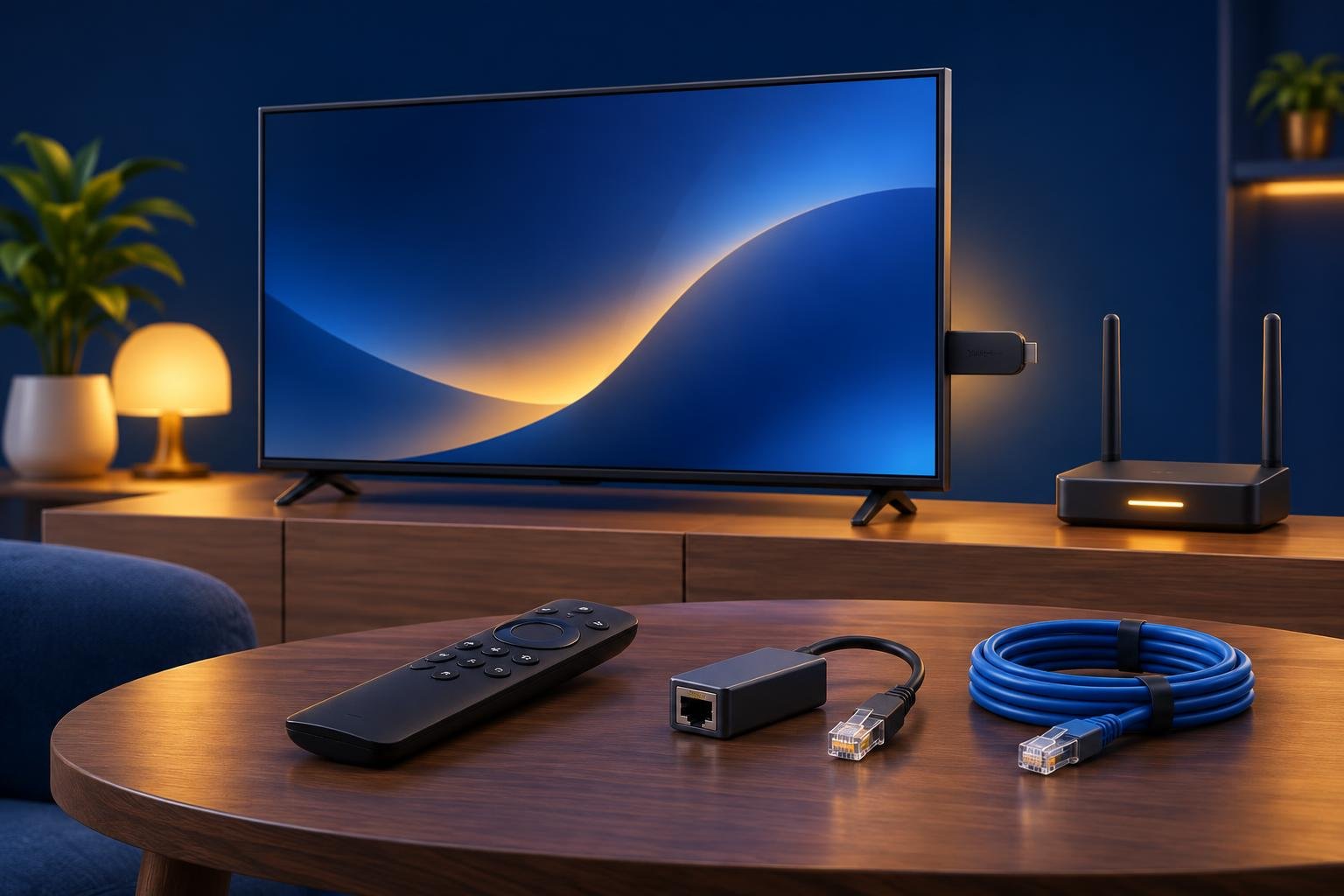
If you want Ethernet, inspect the physical ports before buying. Some boxes have a built-in Ethernet socket; others depend on a separate adapter. A USB port alone does not establish Ethernet-adapter compatibility. Ask the manufacturer or seller to confirm an exact supported adapter model, including whether it needs separate power and whether the required port remains available.
For Wi-Fi, check supported bands and plan around the box’s real location. A connection beside the router tells you little about reception behind a TV across the house. The 5 GHz band can offer higher speeds at shorter distances, while 2.4 GHz may reach farther but face more interference. Neither band guarantees reliable playback in your room.
Ethernet removes the wireless part of the connection, but it cannot repair an unavailable provider stream or an overloaded internet connection. Read the port’s stated speed rather than assuming all wired ports are equivalent. During your return-period test, use the intended connection and try playback at the time of day you normally watch.
- Measure the cable route between router and TV before choosing Ethernet.
- For Wi-Fi, confirm the supported bands rather than guessing from the box’s release date.
- Include any adapter and cable costs in the purchase price.
- Do not buy a faster internet plan solely because one stream buffers; first identify where the problem occurs.
Treat RAM and storage as context, not guarantees
RAM is working memory; storage holds apps, updates and other saved data. More RAM can give apps more room to operate, but it cannot add a missing hardware decoder or fix poor Wi-Fi reception. More storage gives you installation space, not automatically smoother video. Keep these specifications separate when comparing product listings.
There is no single RAM figure that guarantees every playlist will play well. Firmware, decoding support, app behaviour and the stream itself all matter. A higher number on the listing does not establish compatibility. Also check available storage after the system and bundled apps, because advertised capacity is not the same as free space.
Ask how system updates are delivered and whether the box you receive has the advertised software. Updates can change settings and behaviour, so screenshots from a different firmware version may not match. Prioritize a clearly identified model with documented support over a listing that emphasizes large memory figures while leaving ports, codecs and software unspecified.
Confirm what you can return if compatibility falls short
Read return terms separately from warranty terms. A warranty may cover a defective box without allowing a return simply because your particular playlist or audio setup is incompatible. Before paying, confirm the deadline, whether opened and used devices qualify, who pays return postage, and whether any fees apply. Keep the packaging and the seller’s written answers.
Use the return window to test the actual setup, not just whether the box starts. Keep your provider login private and check any simultaneous-connection limit before comparing devices. Change one thing at a time when troubleshooting, so you can tell whether a problem follows the box, the connection or a particular stream.
- 1
Install and update
Install the intended player and any available official system updates. Confirm that everyday navigation works with the supplied remote.
- 2
Add your own playlist
Use your provider’s M3U or M3U8 link, or Xtream Codes details. A player activation buys access to the app, not viewing content.
- 3
Test representative playback
Check the video and audio formats you use, switch between entries, and open the guide if your provider supplies one. Include higher-resolution material if it is part of your normal viewing.
- 4
Check the final location
Put the box where it will stay and use the planned Ethernet or Wi-Fi connection. Test during a normal evening before deciding to keep it.
- 5
Try the player free
On a compatible box, use the official app download options to try OSM PLAYER free for seven days with every feature. Scan its startup QR code, add your playlist, press Test connection and save, then press Refresh in the app.
Published 20 Nov 2026