Connection stability matters beyond headline speed
A high speed-test result does not guarantee uninterrupted viewing. Video needs data to keep arriving consistently, not just a fast burst during a test. Wireless interference, competing devices, or congestion can interrupt that delivery. Your player may then pause while it waits for enough video to continue, even though an earlier speed test looked healthy.
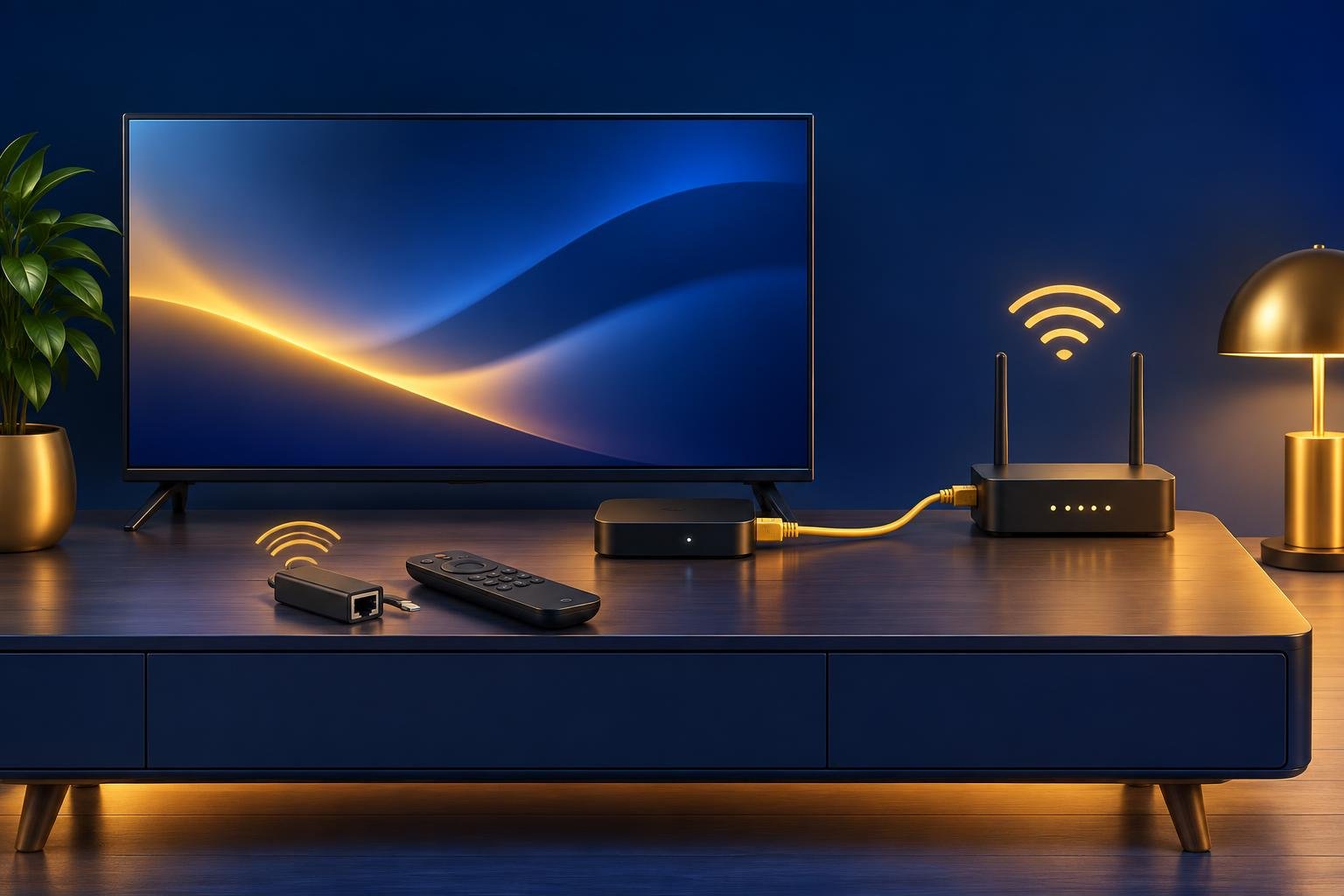
Ethernet removes the wireless hop between your streaming device and the router. It does not replace your internet connection or change the provider’s servers. Both wired and wireless playback still depend on those parts of the route. That is why a cable can transform one setup and make no visible difference in another.
Check the streaming device’s own network information where available. A phone beside the router cannot tell you how well a stick behind the television receives Wi-Fi. Separate connection trouble from player requirements, too: our guide to choosing an IPTV player explains what to check before paying for an app.
When Wi-Fi is a reasonable choice
Keep Wi-Fi if your usual viewing plays reliably, including during the evening when other people are online. There is no need to buy an adapter simply because wired networking has a better reputation. A well-placed router and a compatible streaming device can provide a dependable wireless connection without another cable crossing the room.
Try placement changes before spending money. A television, closed cabinet, or nearby electronics can obstruct or interfere with a wireless connection. Move the router into a more open position where practical. If your streaming device can be repositioned with an appropriate extension or cable, move it out from behind the television while keeping ventilation clear.
If your router and device support both bands, compare 5 GHz and 2.4 GHz from the television’s actual position. The 5 GHz band often offers more capacity at shorter range; 2.4 GHz can reach farther but faces more interference. Neither wins in every room. A missing 5 GHz network can also reflect model, router-channel, or regional compatibility rather than broken hardware.
- Check reception where the streaming device sits, not just where you hold your phone.
- Try each supported Wi-Fi band before deciding that wireless is unsuitable.
- Change one thing at a time so you can identify what helped.
When an Ethernet connection may help
Ethernet is worth considering when playback repeatedly stalls in a weak-signal room, behind a large television, or in a busy wireless environment. It is especially useful when moving the device or router is impractical. A temporary cable directly to the main router can also serve as a diagnostic test before you commit to permanent cable routing.
If the same stream becomes consistently reliable over that cable, Wi-Fi was probably contributing to the problem. One good viewing session is not proof, though: provider load and household internet use can change. Repeat the comparison. If you connect to a mesh point with a wireless link back to the router, part of the journey still uses Wi-Fi.
An Ethernet adapter is worth buying when the evidence points to wireless instability, your device supports it, and the cable route is practical. It is less compelling when Wi-Fi already works or the same fault appears over both connections. For a stick-specific troubleshooting sequence, follow find the Firestick buffering cause before ordering hardware.
Check ports and adapter compatibility before buying
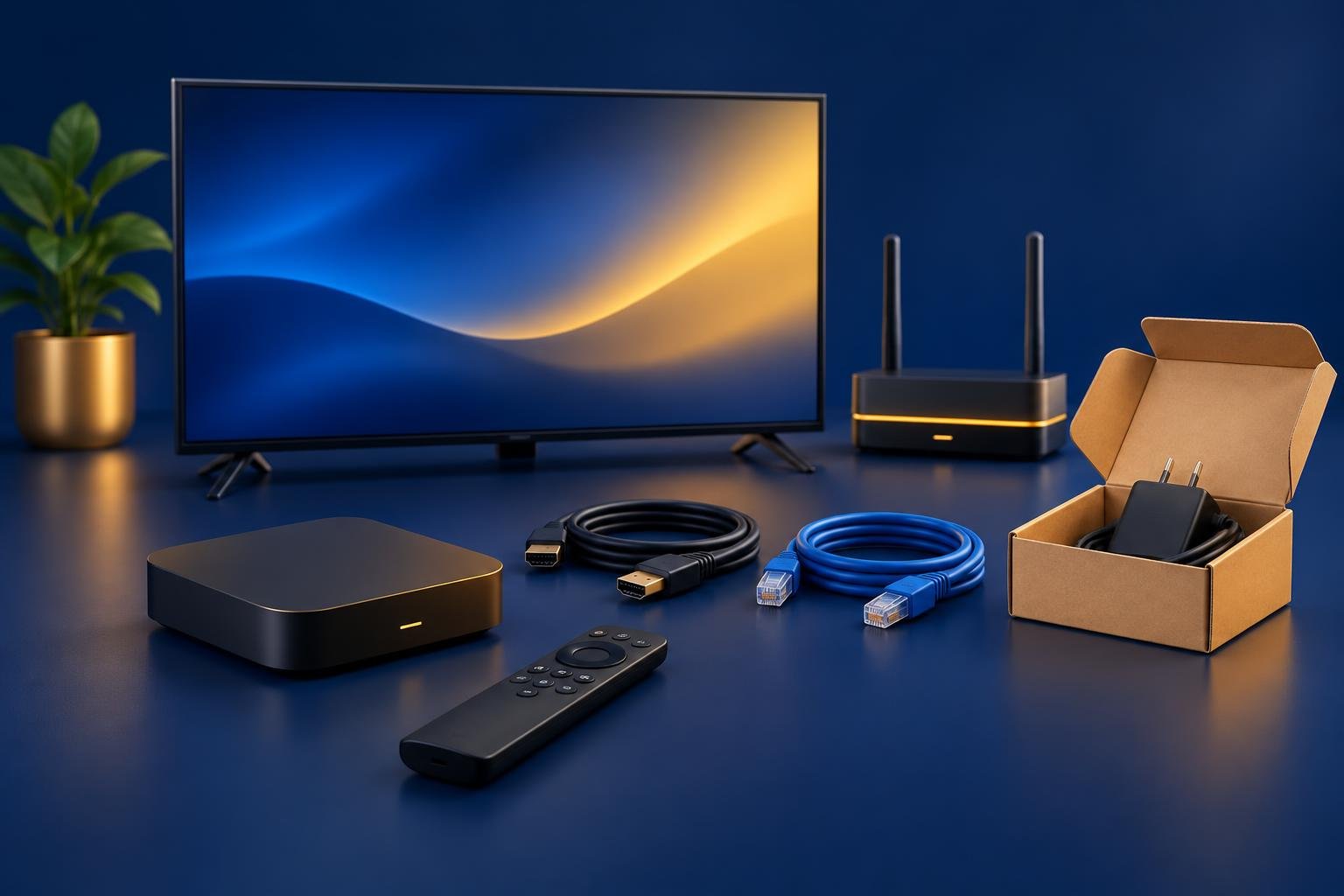
Start with the exact model, not just the product family. Look for a built-in Ethernet socket before shopping for a USB adapter. Google TV Streamer (4K), for example, already has a gigabit Ethernet port. Apple TV 4K configurations differ, so check the generation and configuration rather than assuming every box has the same connections.
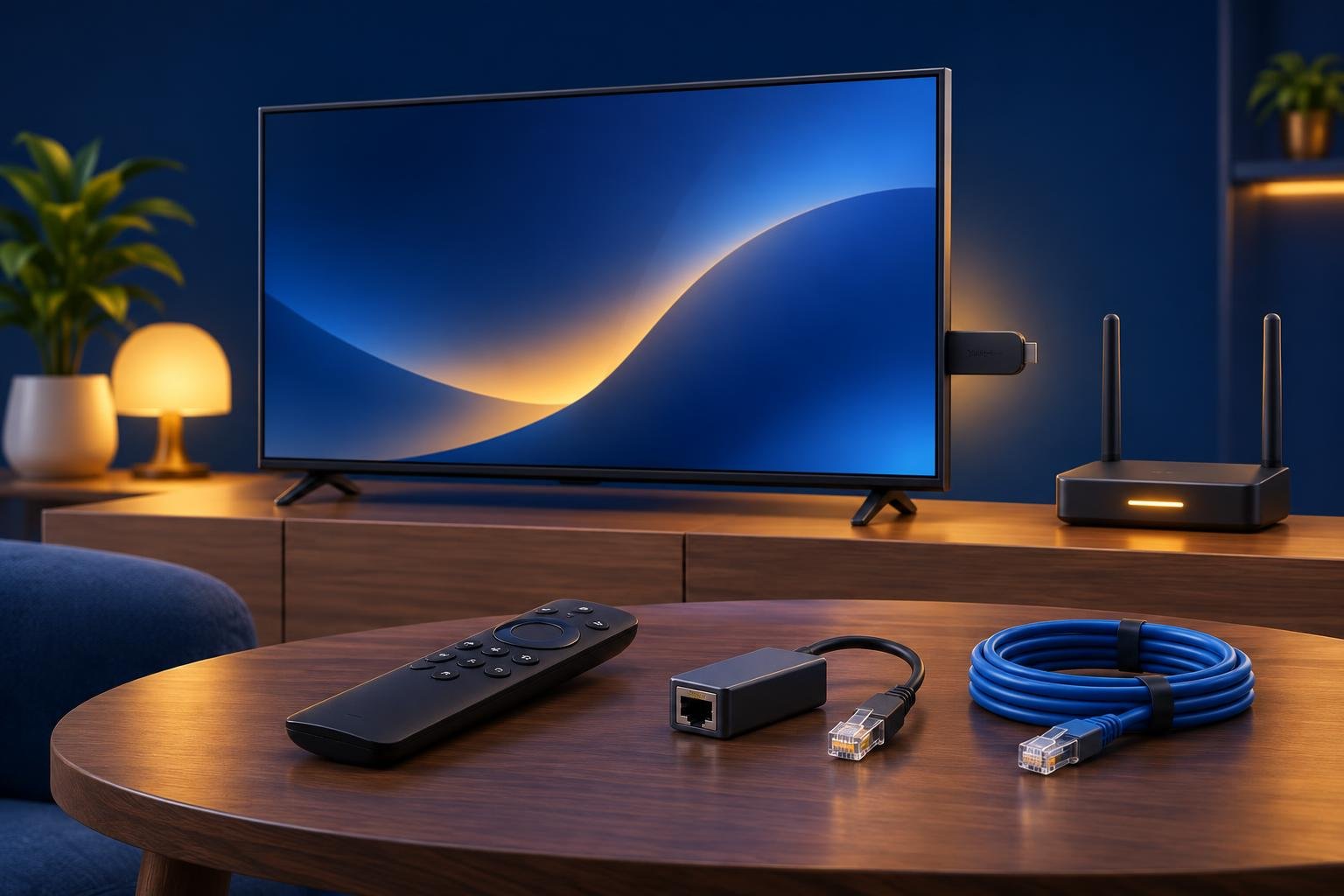
A matching USB connector does not guarantee networking support. The device must support the adapter, and some arrangements must carry power and network data together. Chromecast adapters differ by model, Fire TV arrangements need model-specific confirmation, and only some Roku players support USB Ethernet adapters. A USB socket may serve storage or power without supporting wired networking.
Read the hardware compatibility information for your exact model before buying. Check the adapter’s supported devices, power arrangement, and Ethernet speed, rather than choosing by its largest advertised number. For app availability, see OSM PLAYER on Android TV or OSM PLAYER on Fire TV. If you are replacing the box itself, use the Android TV box buying checklist first.
- Confirm the full model name and generation.
- Use a built-in Ethernet port if the device has one.
- Verify adapter support explicitly; connector shape alone is insufficient.
- Check whether a separate power supply or compatible powered arrangement is required.
- Plan a safe cable route that does not create a trip hazard.
Compare both connections under similar conditions
A useful comparison changes the connection, not the whole viewing setup. Switching from a television on Wi-Fi to a different box on Ethernet also changes the hardware and possibly the player. You would not know which change helped. Use the same device, app, and playback item, and keep other household traffic as similar as practical.
You can make this comparison in OSM PLAYER with the playlist you already use from a provider you have the right to watch. Leave the playlist and playback choice unchanged between runs. There is no need to delete your playlist or enter its login again just because you switch the device’s network connection.
- 1
Record the wireless baseline
Play something you normally watch over Wi-Fi for a useful period, such as 10 to 15 minutes. Note pauses, loading delays, and whether other devices are downloading or streaming.
- 2
Connect directly to the router
Use the built-in Ethernet port or a confirmed compatible adapter. For this test, prefer a direct router connection rather than introducing another network link.
- 3
Verify the active connection
Check the device’s network information to confirm it is using Ethernet. Inserting a cable is not enough if the adapter is unsupported or the wired connection has not been established.
- 4
Repeat the same playback
Use the same live stream or recorded item for a similar duration. With live TV, the programme changes over time, so compare repeated sessions rather than treating one uninterrupted minute as decisive.
- 5
Confirm the pattern
Switch back to Wi-Fi and repeat when practical. A consistent improvement on Ethernet is stronger evidence than a single successful run; no repeatable improvement means you should investigate elsewhere.
Recognize problems that changing the cable will not solve
If the device connects to the router but cannot reach the internet, an Ethernet adapter cannot restore an upstream outage. Check whether another device can access the internet. Likewise, heavy household traffic can saturate the internet connection even when your television is wired. Ethernet removes wireless competition for that device, not every bottleneck beyond it.
If one playback item fails while others work on both connections, check that item with your provider. Invalid playlist credentials, an expired provider account, and provider connection limits also need their own checks. A cable cannot grant access or repair a faulty source. Avoid testing simultaneously on several devices unless your provider allows those connections.
Random restarts or a low-power warning point toward power rather than Wi-Fi. Check the device’s recommended power supply and connections, especially after adding an adapter. Sound without a picture can also indicate a playback or format issue, so do not assume every symptom is buffering. If wired and wireless fail identically, stop buying network hardware until you narrow down the cause.
Keep the connection that performs reliably in your comparison. If you also need a player, you can try OSM PLAYER free for seven days on a supported device. It is a player only: it includes no channels, films, series, or playlists, so you add a playlist from your own provider.
Published 26 Nov 2026