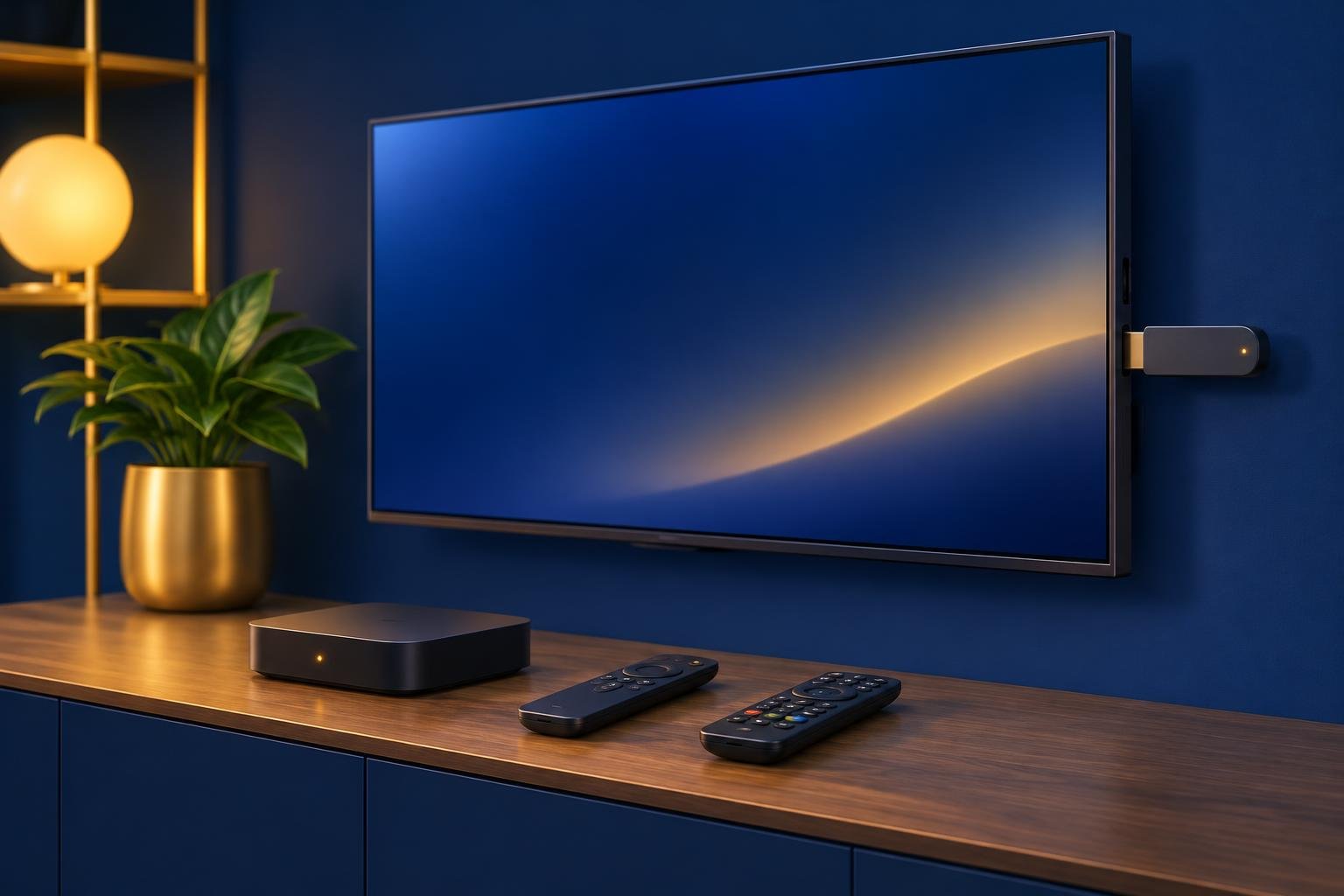
An LG webOS TV is not an Android TV device
A smart TV can connect to the internet without using Android. LG webOS TVs run LG’s own operating system, with its own app store and compatible applications. Android TV and Google TV devices use a different platform. Having a browser, Wi-Fi and an app store does not mean these systems can install the same files.
Check which device is actually showing the screen before following installation instructions. If you are browsing LG’s own Apps area, you are using webOS. If you have selected an HDMI input connected to a Google TV box or another streaming device, you are using that attached device’s interface instead. The LG screen can display either one, but they remain separate systems.
This distinction explains why a guide can work on an Android TV box connected to an LG television but fail on the television itself. Instructions for Android TV and Google TV apply to the box, not to LG’s built-in software. Installing an app on the box does not add it to the LG Apps area.
Why an Android APK is not an LG app
An APK is an Android application package. It contains an app built to run with Android’s software components. webOS uses a different application format and environment; its development tools package webOS apps as IPK files. Downloading an APK through the LG browser or copying it onto a USB drive does not supply the Android environment it needs.
Changing the filename from .apk to .ipk changes only the name, not the software inside. LG Developer Mode is not a workaround either: it lets developers test webOS applications, rather than enabling Android compatibility. There is no LG setting that converts an Android IPTV app into a webOS app.
Keep this separate from ordinary installation failures. A supported LG-store app may fail because of storage, connectivity or account problems. An APK is incompatible before those checks become relevant. Deleting apps, changing the store country or downloading the same APK again will not make it run on webOS.
- APK downloaded but no installation starts: downloading a file does not make it compatible with webOS.
- Instructions mention Android installation permissions: those instructions belong on an Android-based device, not the LG TV.
- A native LG-store app reports insufficient storage: that is a different problem involving a compatible app.
Is OSM PLAYER available on LG TV?
OSM PLAYER’s native LG webOS app is coming soon. It is not currently available in the LG Content Store, so searching another category or changing your store region will not reveal an existing LG release. The LG TV availability page explains the current position and the attached-device route you can use today.
An Android APK offered for the app is not an early LG version. It is intended for compatible Android-based devices. Until the native LG release is available, the practical choice is to run the player on a supported external device and use the LG TV as the display. You do not need to replace the television.
The player itself does not include channels, films, series or playlists. You add a playlist from your own provider that you have the right to watch. Paying for app activation enables playback on one device; it does not buy content or provide provider login details.
Use a supported HDMI stick or box instead
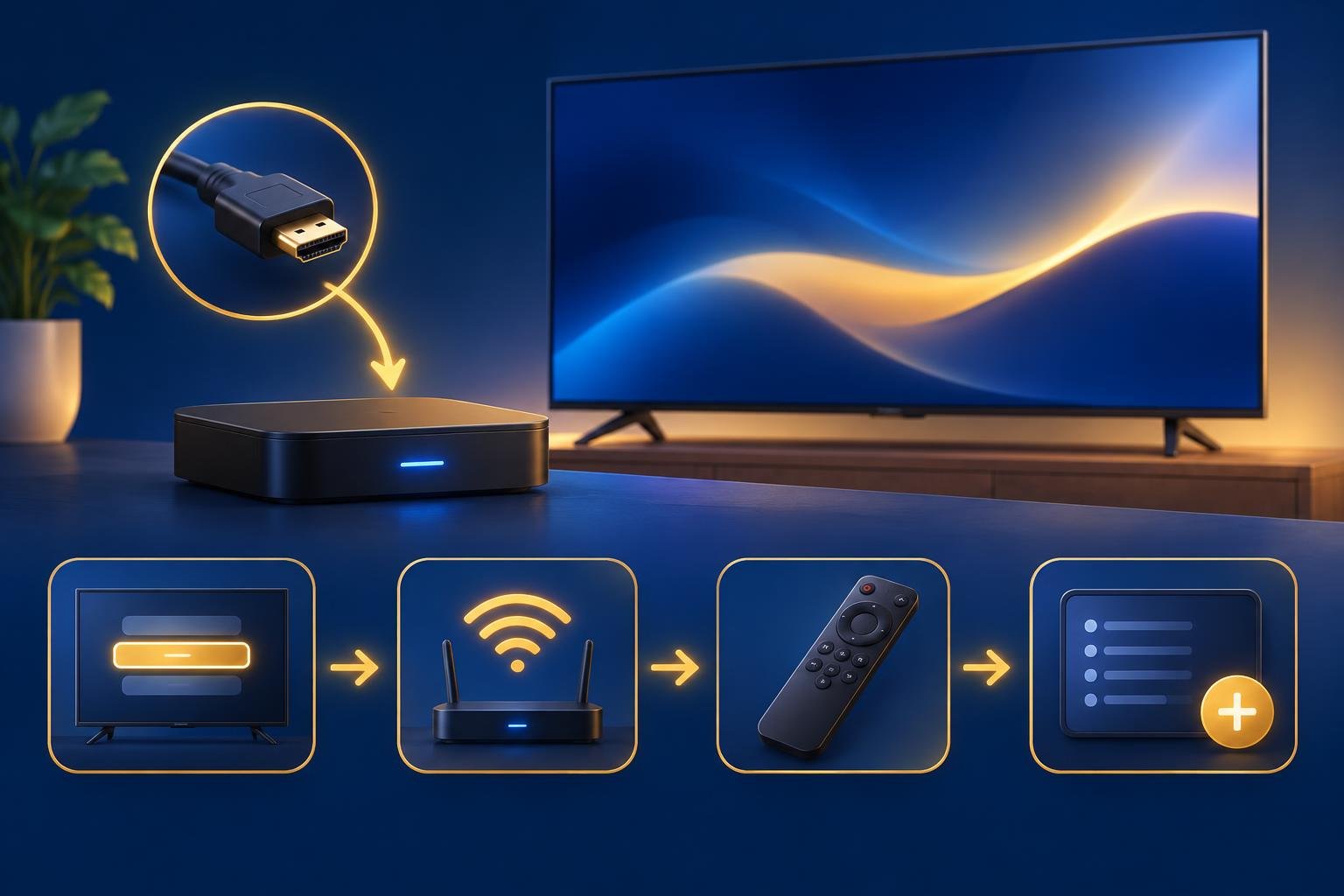
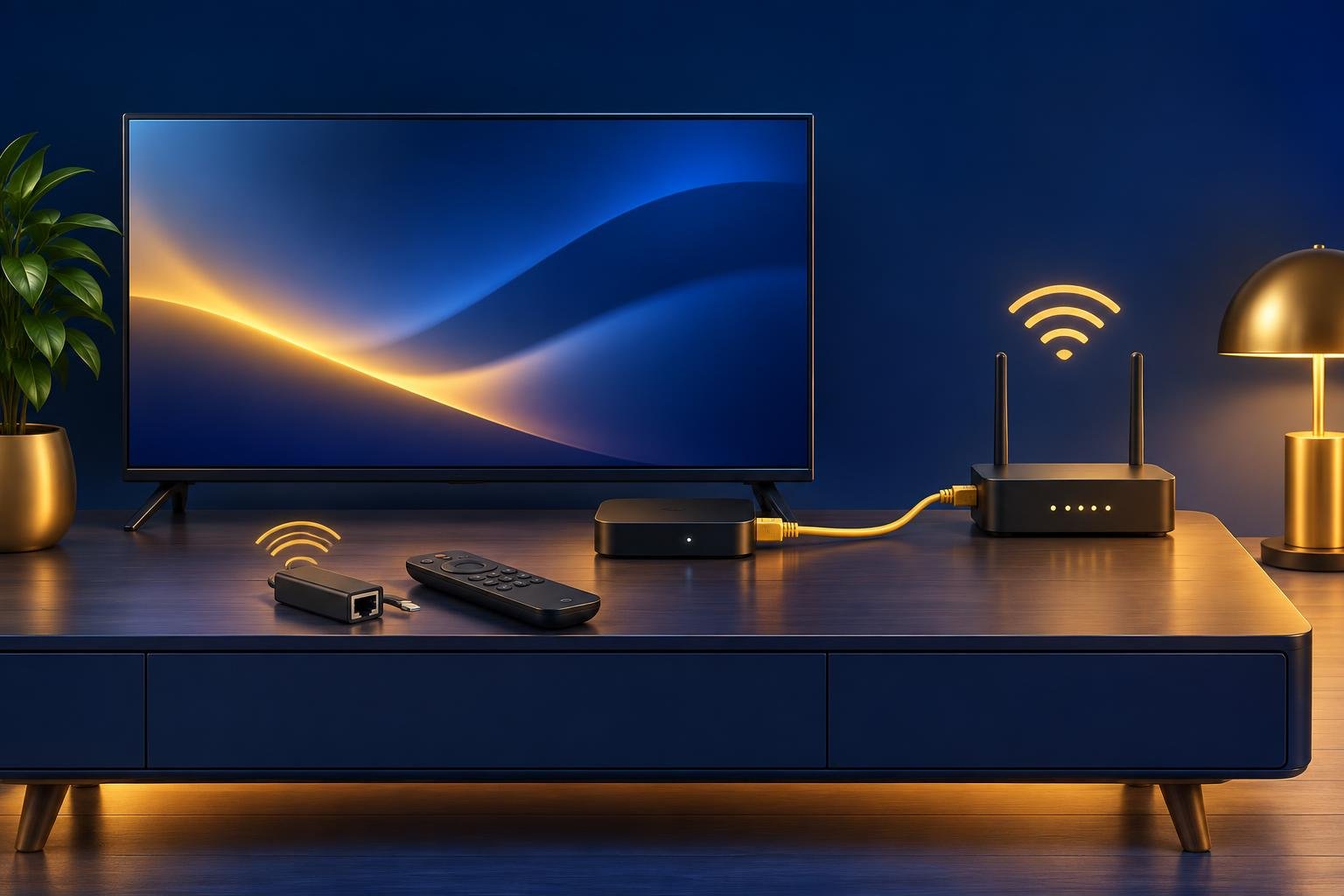
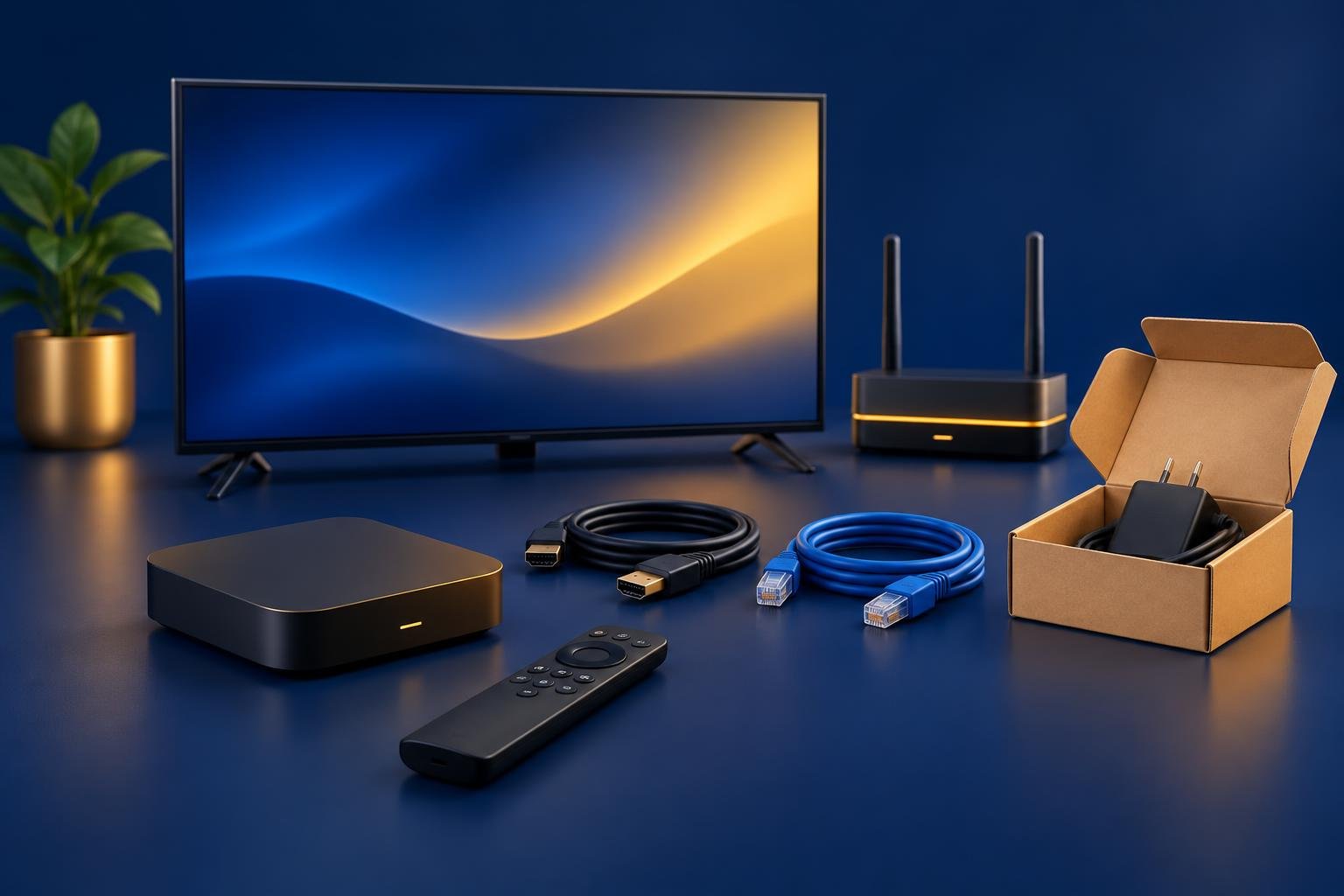
A compatible streaming stick or box does the work that webOS cannot: it installs and runs the app, connects to your playlist and sends the picture and sound through HDMI. The LG TV stays on the selected HDMI input. Use the attached device’s remote to open the app and browse your playlist.
An Android TV or Google TV device with access to Google Play is a straightforward option. Check the exact model and operating system before buying, rather than relying on a listing that says only “smart box.” The Android TV box checklist explains what to check before choosing one.
For a Fire TV Stick, check the exact generation and operating system too. Fire OS and Vega OS models should not be treated as interchangeable for Android APK instructions. The Fire TV Stick 4K Max second generation uses Android-based Fire OS 8; models using Vega OS need separate compatibility confirmation. See the Fire TV installation options rather than assuming every stick accepts the same APK.
- 1
Connect the streaming device
Plug the stick or box into an available HDMI port on the LG TV. Connect its power supply as directed by the device manufacturer.
- 2
Select the matching input
Use the LG remote to select the HDMI input you connected. You should see the attached device’s home screen, not LG’s Apps area.
- 3
Connect the device to internet
Complete the streaming device’s setup and connect it to your network. Its own app store is where you will install the player.
Install the app on the attached device
Keep the LG TV on that HDMI input throughout installation. On Google TV or Android TV, find OSM PLAYER in Google Play and select Install. On a supported Fire TV device, look in the Amazon Appstore. These actions happen on the attached device, even though you see them on your LG screen.
Downloader is an alternative on compatible Android-based devices, not an LG webOS installation tool. The code 2067786 installs the app through Downloader on supported Android TV boxes, Google TV and Android-based Fire TV devices. Do not extend that APK procedure to Vega OS without verified compatibility. For the supported Fire TV routes, follow the Firestick installation steps.
- 1
Open the installed app
The first screen shows a MAC address, a six-digit device key and a QR code. A free seven-day trial with every feature begins.
- 2
Open playlist management
Scan the QR code with your phone, or open Manage your playlist and sign in with the MAC address and device key shown in the app.
- 3
Enter your provider details
Add your M3U or M3U8 link, or your Xtream Codes server URL, username and password. You can also add an EPG link and a playlist PIN.
- 4
Test and save
Press Test connection, then save the playlist. If the connection fails, check the details against those supplied by your provider before continuing.
- 5
Refresh the player
Return to the app on the attached device and press Refresh. Your playlist should load; the available content comes from your provider, not from the player.
Which device details and activation apply?
Use the MAC address and device key displayed inside the player running on your stick or box. Do not substitute the LG TV’s Wi-Fi or Ethernet MAC address from its network settings. Those television details identify a different device and are not the credentials used to manage this app installation.
Activation is per device, and each device has its own MAC address and activation. Connecting the same activated stick to another television does not turn it into a new installation on that television: the app still runs on the stick. Moving to a different stick, box or future native TV installation means using that device’s own details and activation.
After the seven-day trial, your playlists stay saved, but playback pauses until you activate the device. Before paying, confirm that you are managing the MAC address shown in the app you intend to keep using. To get started today, choose your supported stick or box from the available app downloads and try OSM PLAYER free for seven days on that device.
Published 27 Nov 2026