Separate phone playback, casting and screen mirroring
Phone playback means the player opens your playlist and shows video on the iPhone itself. No TV connection is involved. It is a sensible choice when you want to watch away from the television or use headphones without involving another device. See the iPhone and iPad player page for the supported phone option.
Wireless video streaming is a different route. An app may offer AirPlay video streaming or Google Cast, provided both the app and receiving device support that system. With Google Cast, the receiver normally handles streaming playback while the phone starts and controls the session. Casting does not always mean the phone is doing all the playback work.
Screen mirroring instead shows the iPhone display on a compatible receiver. You remain dependent on that mirrored display, including its layout and any visible interruptions. A TV app is different again: it runs on the television itself or a connected box or stick. Its playlist, navigation and playback are handled there, rather than through a copy of your phone screen.
- Phone playback: watch directly on the iPhone.
- Supported video streaming: send video through an app-supported wireless route.
- Screen mirroring: display the phone screen on the television.
- TV-device playback: open the player and playlist directly on the TV, box or stick.
Check support before relying on a wireless route
A video playing correctly on your phone proves only that phone playback works. It does not establish AirPlay or Cast support. These are also different systems: an iPhone's Screen Mirroring control is not a Google Cast control. Check the actual player's documented support and your exact receiver model, not just whether the television is described as smart.
OSM PLAYER's iPhone availability is not a promise of casting, AirPlay or screen mirroring compatibility. Do not choose a wireless setup on that assumption. If you are evaluating a player with confirmed wireless support, check discovery and actual video playback before making it your evening routine. Finding the television in a device list is only the first checkpoint.
- 1
Confirm both ends
Check which wireless method the player supports and whether your exact TV or connected receiver supports the same method. Brand names alone do not establish compatibility.
- 2
Join the same Wi-Fi
Connect the iPhone and receiver to the same Wi-Fi network before trying to connect. Internet access on both devices does not necessarily mean they can discover each other.
- 3
Check discovery permissions
For a Cast-enabled app, look for its Local Network permission in iPhone settings and allow access. A missing receiver can be a permission or network problem, not proof that you need a new TV.
- 4
Try the supported route
Use the app's supported video-streaming control, or Screen Mirroring for a mirroring test. If the television displays a pairing passcode, enter it on the phone; this is not your playlist password.
- 5
Check everyday playback
Confirm that both picture and sound reach the television. For supported video streaming, check what happens when you lock the phone or open another app rather than assuming playback will continue or stop.
What happens when the player runs on the TV device?
With a player installed on the TV device, you open it using the remote and select your playlist there. The phone can help with entering login details, but it does not need to remain connected for playback. This removes wireless discovery and phone-to-TV pairing from the viewing routine, though the TV device still needs a working internet connection.
OSM PLAYER runs on Apple TV, Android TV, Google TV and Amazon Fire TV devices. Its Samsung and LG TV apps are coming soon, not available in those TVs' stores today. For those televisions, a connected Fire TV Stick or Android TV box is an option. It is a player only: it includes no channels, films, series or playlists. Add content from your own provider that you have the right to watch.
- 1
Open the TV player
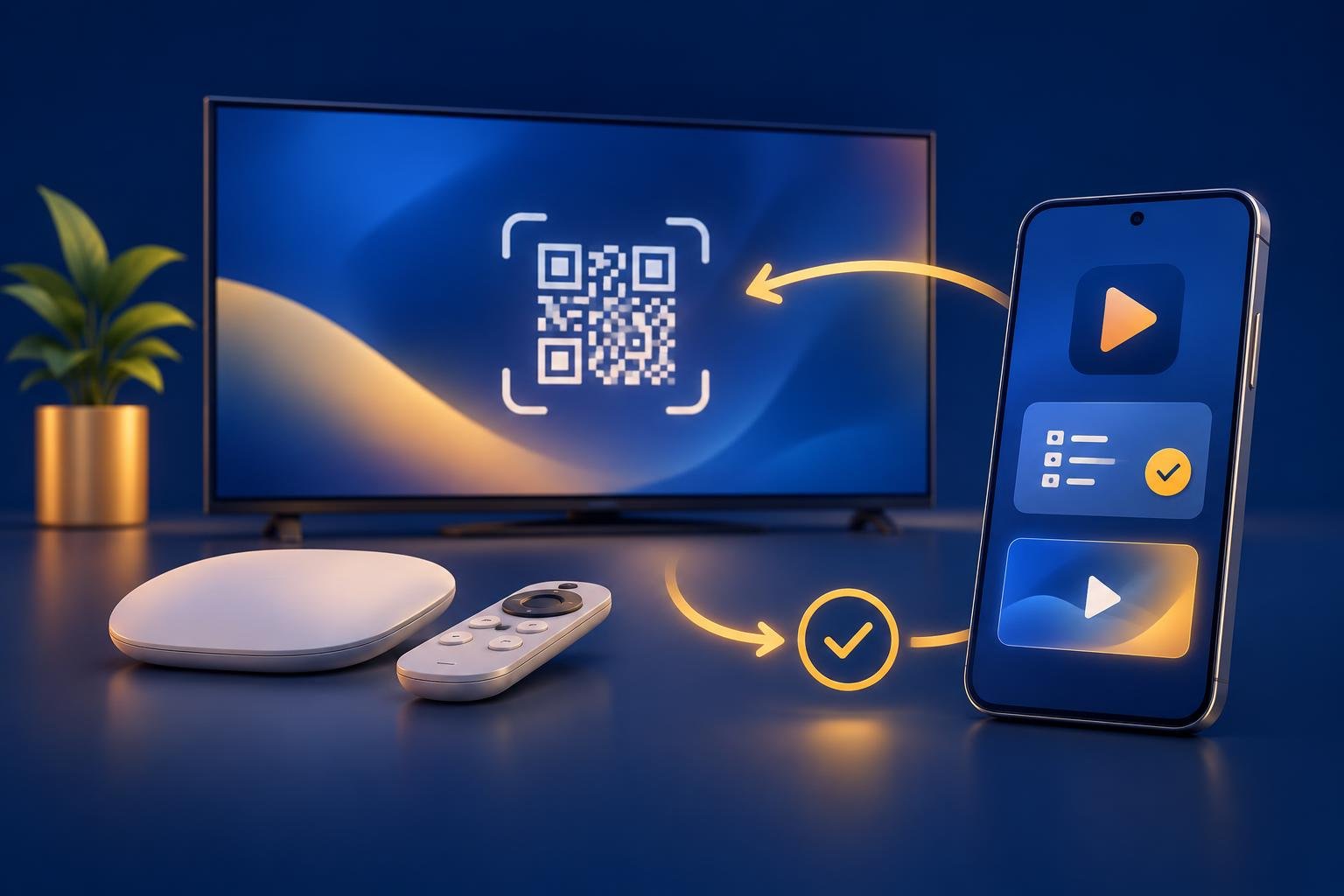
At first start, the app displays a MAC address, a six-digit device key and a QR code. The free seven-day trial begins with every feature available.
- 2
Add your provider details
Scan the QR code or open Manage your playlist and sign in with that device's MAC address and key. Add an M3U or M3U8 link, or your Xtream Codes server URL, username and password; optionally add an EPG link and PIN, then press Test connection and save.
- 3
Refresh on the television
Press Refresh in the TV app to load the saved playlist. Once it appears, use the remote to browse and start playback; you can put the phone away.
Compare remote control and phone dependence
For regular sofa viewing, consider how you will choose the next channel, not just how you will start the first one. A player running on the TV device keeps browsing and playback controls together on the large screen. Phone playback keeps everything on the phone. Mirroring makes the television an extension of that phone display rather than a separate, remote-first player.
Supported casting can be more independent than mirroring. A Google Cast receiver can continue playback after the sending phone's battery dies, so it would be wrong to say all wireless playback stops when the phone is unavailable. However, browsing, changing streams and reconnecting depend on the particular app and receiver. Verify those actions with your actual setup.
Using a phone to enter a playlist is not the same as casting. You can complete setup on the phone and then control a TV player entirely with the remote. If that is the workflow you want, the Google TV Streamer setup guide explains the phone-assisted setup route.
- Choose phone playback when the iPhone is the screen you want to watch.
- Consider confirmed casting support for occasional TV viewing without installing another player.
- Treat mirroring as a display-sharing option, not proof of a remote-friendly TV experience.
- Choose a TV-device player when browsing with the remote matters most.
Check provider connection limits and device activation
Your provider's connection allowance and your player's activation are separate things. Before leaving playback running on the iPhone and starting it on the TV, ask your provider how many simultaneous streams your account permits. Do not assume casting counts as one connection or two: general AirPlay and Cast behavior does not establish how your particular account counts playback.
When comparing setups, stop playback on one device before starting the other. This avoids testing two streams accidentally and mistaking an account limit for a TV problem. If you want both screens playing at once, check the provider's rules first. The guide to using a playlist on two devices explains the distinction.
Player activation does not increase that allowance or buy any content. Each device has its own MAC address and its own activation. After the seven-day trial, saved playlists remain, but playback pauses until that device is activated. Activating the phone does not activate a separate TV device, so choose where you actually want to watch before paying.
Choose a setup you can use every evening
Choose by the screen and controls you want to use most. If you mainly watch on the iPhone, keep playback there. If television viewing is occasional, a confirmed wireless route may be enough. If you want to sit down, pick up the remote and browse without involving your phone, a player installed on the TV device is the more direct arrangement.
You do not need to replace a working television just because it lacks the player you want. A compatible HDMI box or stick can run the app independently of the television's own operating system. The Smart TV setup guide explains that route and how adding your provider's playlist differs from installing the player.
Make the decision using one ordinary viewing session: open the player, browse, start video, change channels and check the guide where available. Choose the supported device you expect to use each evening, then download OSM PLAYER and try it free for seven days with your own playlist.
Published 22 Nov 2026